How to add two-factor authentication (2FA) to a credential
Last updated: July 13, 2026
Strike can test assets protected by two-factor authentication. When you add a Password credential, you choose how Strike should complete the second factor: with an authenticator app (TOTP) or with email verification codes sent to a Strike-managed inbox.
This article covers the two supported methods, how to configure each, and the most common questions about setup.
How it works
Most production apps require 2FA at login. Strike completes the second factor the same way a real user would, and then runs the full authenticated test against your asset, covering vulnerabilities that appear behind the login (privilege escalation, IDOR, broken access control, business-logic flaws).
ℹ 2FA is optional and configured per credential. You can mix credentials with and without 2FA on the same asset, and switch the method on a credential at any time.
Supported 2FA methods
Authenticator app: paste the TOTP secret once, and Strike generates the rolling 6-digit codes on every test.
Email verification code: the target app sends a code to a Strike-managed
@strike.emailinbox; Strike reads it and continues the login.
✅ @strike.email inboxes are real, deliverable mailboxes provisioned and read by Strike. You don't need to create them or share access.
How to set up 2FA on a credential
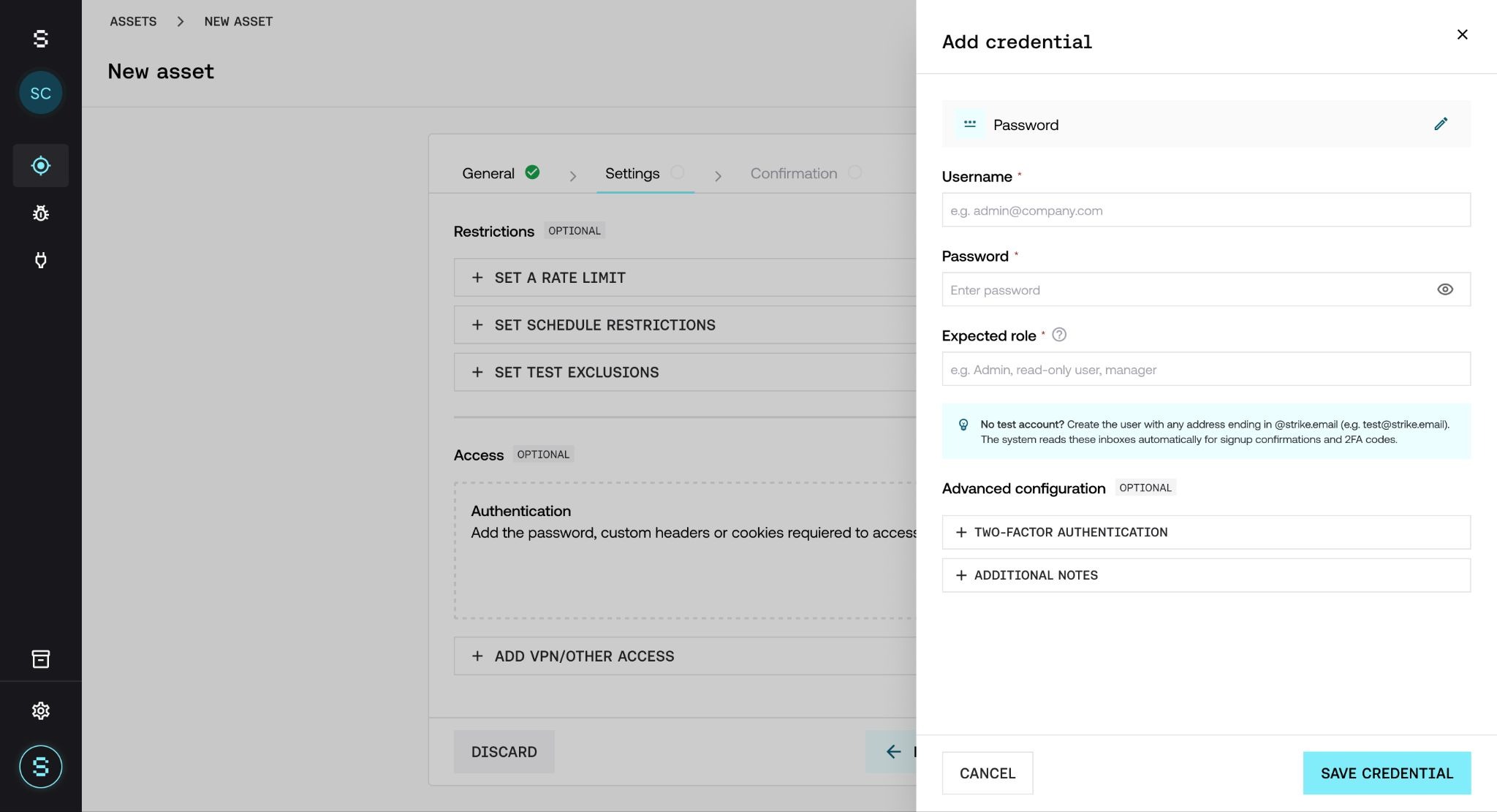
Open the asset and click Add credential.
Select Password as the credential type.
Fill in the username, password, and expected role.
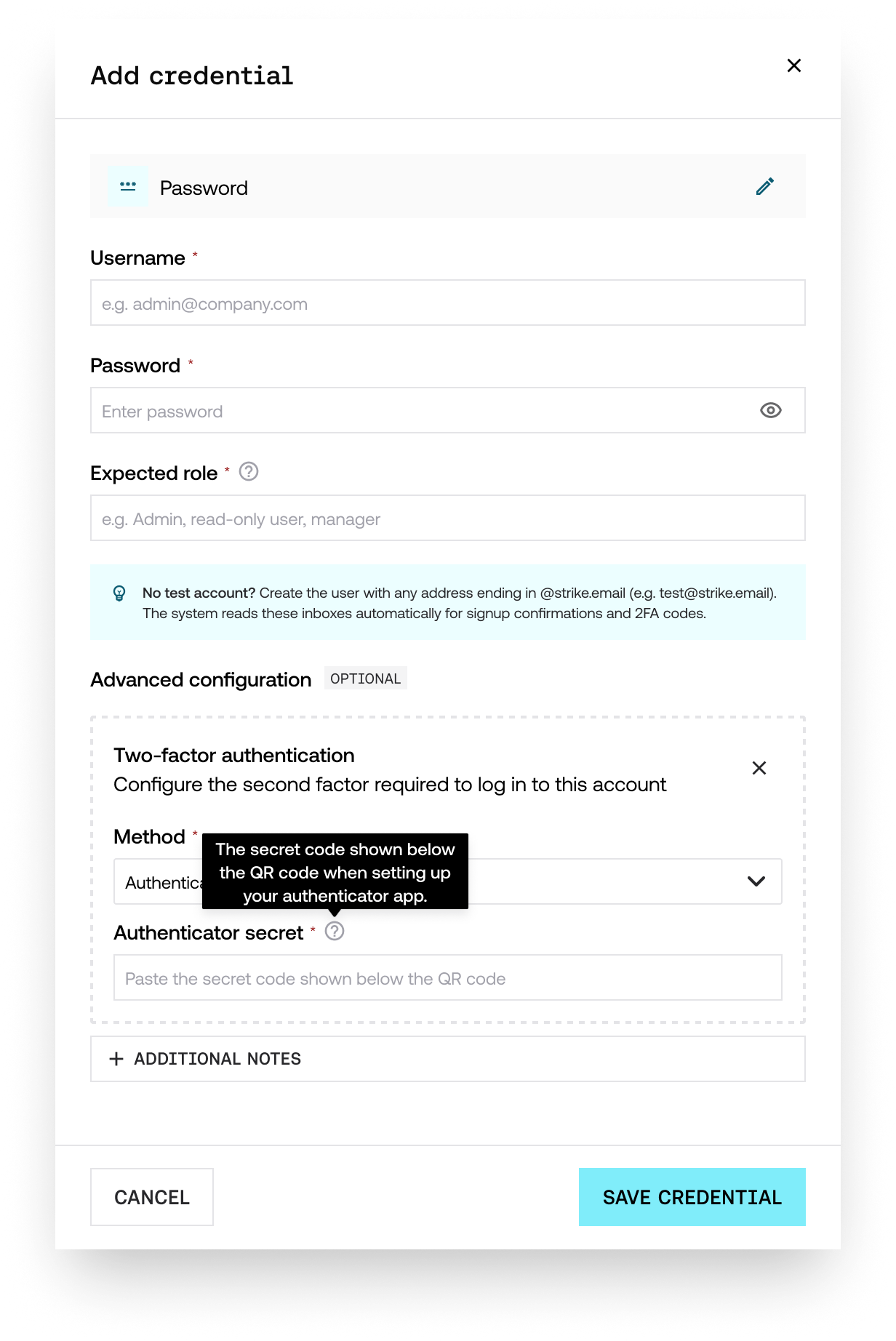
Under Advanced configuration, click Two-factor authentication.
Pick the Method that matches the target app, and fill in the method-specific field.
Click Save credential.
You can edit the 2FA configuration later by clicking the credential row to reopen it.
Method 1: authenticator app (TOTP)
Use this method when the target app uses Google Authenticator, Authy, 1Password, Microsoft Authenticator, or any other TOTP-compatible app.
What you need: the TOTP secret from the target app's authenticator setup screen. This is the alphanumeric string usually shown next to the QR code (for example, JBSWY3DPEHPK3PXP). If only the QR code is shown, most authenticator apps let you reveal the underlying secret after scanning.
Where to paste it: in the Authenticator secret field that appears once you select this method.
That's all. Strike generates valid 6-digit codes throughout all the tests.
Method 2: email verification code
Use this method when the target app emails a one-time code to the user at login (for example, "Your login code is 123456").
The requirement: the Username on the credential must end in @strike.email. Strike only receives codes sent to inboxes we manage, and @strike.email is the domain we control for this purpose.
If you already have a test account in the target app: make sure its email address ends in @strike.email (for example, [email protected]). If it doesn't, update the account email or create a new test user.
If you don't have a test account yet: sign up in the target app using any @strike.email address (for example, [email protected]). The signup confirmation email arrives in the Strike-managed inbox and we read it automatically to complete the registration. Then save those credentials in Strike using the same @strike.email username.
Any @strike.email address works out of the box. There's no inbox to provision and no access to share.
Frequently asked questions
Can I use both 2FA methods on the same credential?
No. Pick the one the target app actually uses. Each credential maps to a single login flow.
What if I don't have the TOTP secret, only the QR code?
Most authenticator apps (Google Authenticator, Authy, 1Password) let you reveal the secret after scanning the QR code. Alternatively, you can re-set up 2FA on the test account and copy the secret before scanning the new QR code.
Is SMS-based 2FA supported?
SMS support is still expanding. We don't yet have phone-number coverage for every country, and the list of supported regions changes as we add new providers. If your test relies on SMS codes, reach out to your Strike contact and we'll check whether your country is covered. We're actively working on broadening this.
Can my customers or anyone outside Strike see emails sent to @strike.email?
No. Those inboxes are managed inside Strike and aren't exposed externally. They exist only to receive verification and signup emails for the tests you authorize.
Can I create the test user with @strike.email before configuring Strike?
Yes, and this is the recommended flow when no test account exists yet. Sign up directly in the target app with any @strike.email address; Strike reads the signup confirmation. Then add the credential in Strike using that same username.
What if a credential was set up by an admin?
Credentials provisioned by your workspace admin are read-only for everyone else. You can open the drawer to inspect the configuration, but editing and deletion are disabled. If something needs to change, contact your admin.
Is the credential validated before the test runs?
Strike attempts authentication during the test itself. If the login fails (wrong password, expired secret, missed verification code), the failure is reported in the test results so you can fix the credential and re-run it.
Can I add 2FA to an existing credential?
Yes. Open the asset, go to Details, and edit its configuration. From there you can open the credential, expand Two-factor authentication, choose a method, and save.
If the Configuration Check fails, does it consume my license or plan credits?
No. The Configuration Check runs before testing begins, so if it detects an issue and testing doesn't start, nothing is consumed from your plan. That's exactly the point: catching an