How to set up the Strike app for Jira
Last updated: October 30, 2026
The Strike app for Jira automatically turns your vulnerabilities into Jira issues and keeps them up to date as the vulnerability changes. If you enable it, it also works the other way around: when your team moves an issue on the board, Strike reacts.
Before you start
Only users with the Owner role in Strike can connect the integration and change its settings. All other roles see it in read-only mode.
You need administrator permission on your Jira site to install the app, and write permission on the projects where you want Strike to create issues.
Connect Strike with Jira
The connection uses a one-time code and takes you through three places. Here are the steps in order.
In Strike
Go to Settings, then Integrations, and open Jira.
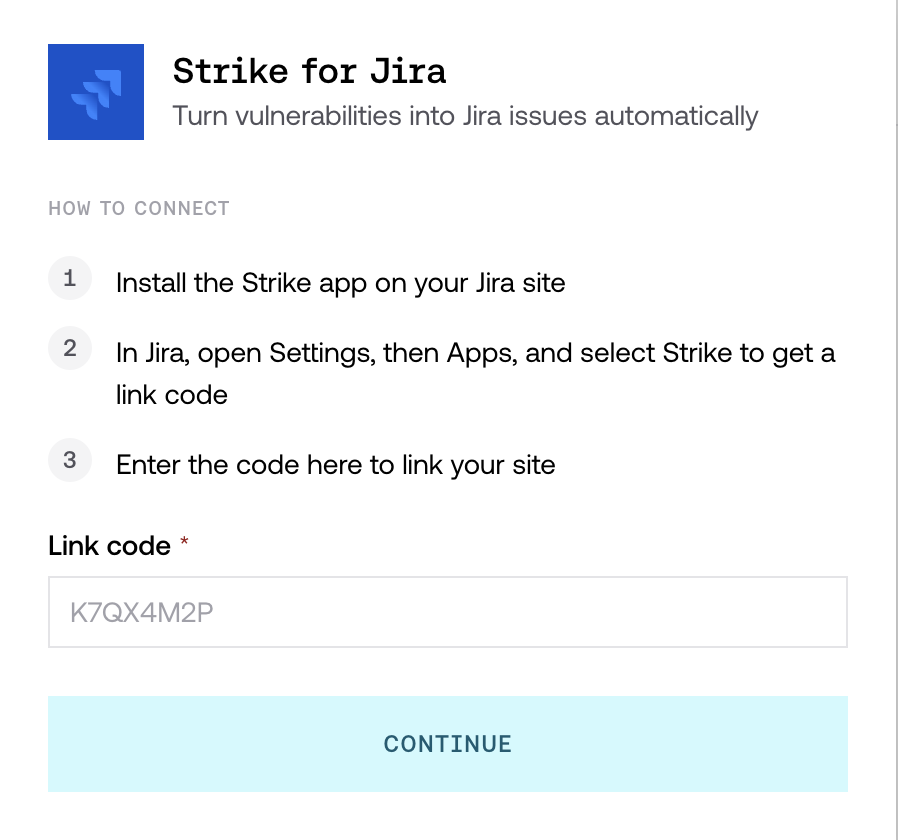
Click Connect Jira. The Strike for Jira modal opens.
Click Install the Strike app, in the first step of the modal.
In Atlassian
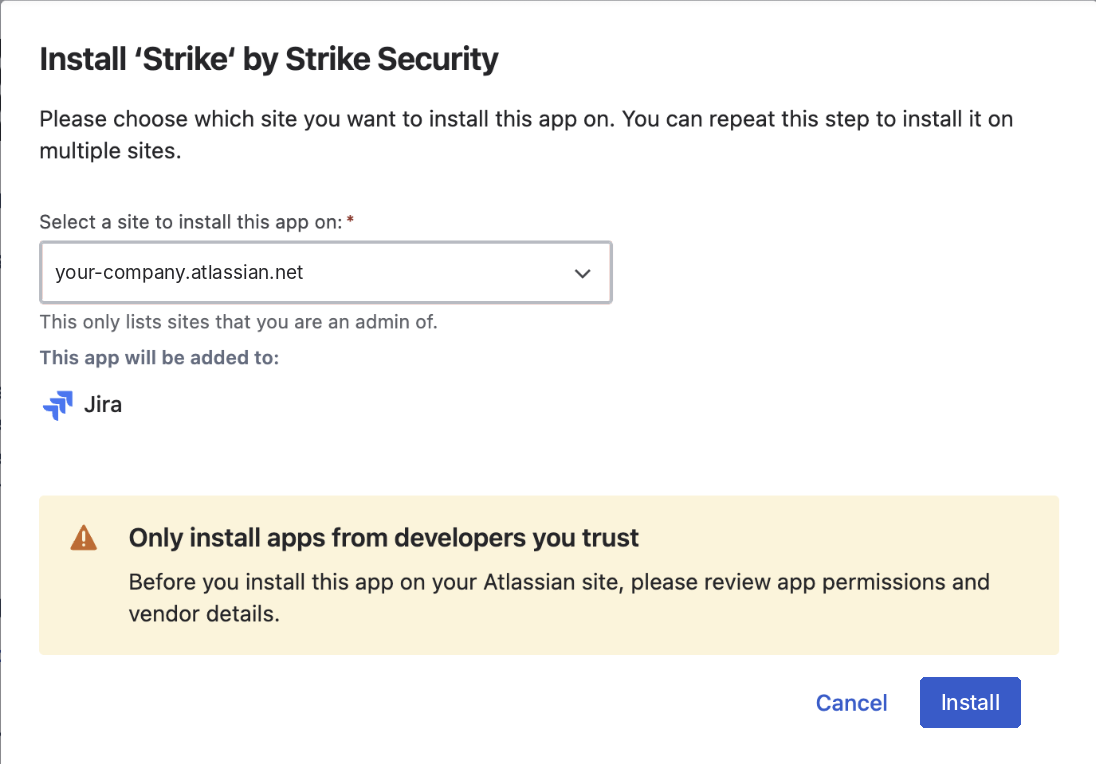
On the app page, click Get app.
Choose the Jira site where you want to install it and click Install. The list only shows the sites where you are an administrator.
On your Jira site
Go to Settings, then Marketplace Apps, and select Strike in the left column.
Copy the code shown under Connect this Jira site with Strike. It can only be used once and it expires, so if you run out of time, generate another one with Generate a new code.
Back in Strike
Paste the code into Link code and click Continue. Before linking, Strike shows you the address of the Jira site: make sure it is the right one.
When it finishes, the integration changes to Connected and shows the name of your site.
Create a destination
A destination tells Strike two things: which Jira project to create the issues in and which vulnerabilities to send there.
In Jira project, choose the project where the issues will be created. The list only shows the projects you have access to.
In Source, choose where the vulnerabilities that go to that project come from: Assets, Threat emulations, Projects or Entire organization.
You can create multiple destinations. When a vulnerability fits more than one, the most specific one wins, in this order: Assets, Threat emulations, Projects and, lastly, Entire organization.
Choose the issue type
Strike always creates the same type of issue in that project, and you choose which one. The workflow of that issue type defines which Jira statuses you can use in the next step, so it is best to choose it before thinking about the mapping.
Map Strike statuses to Jira statuses
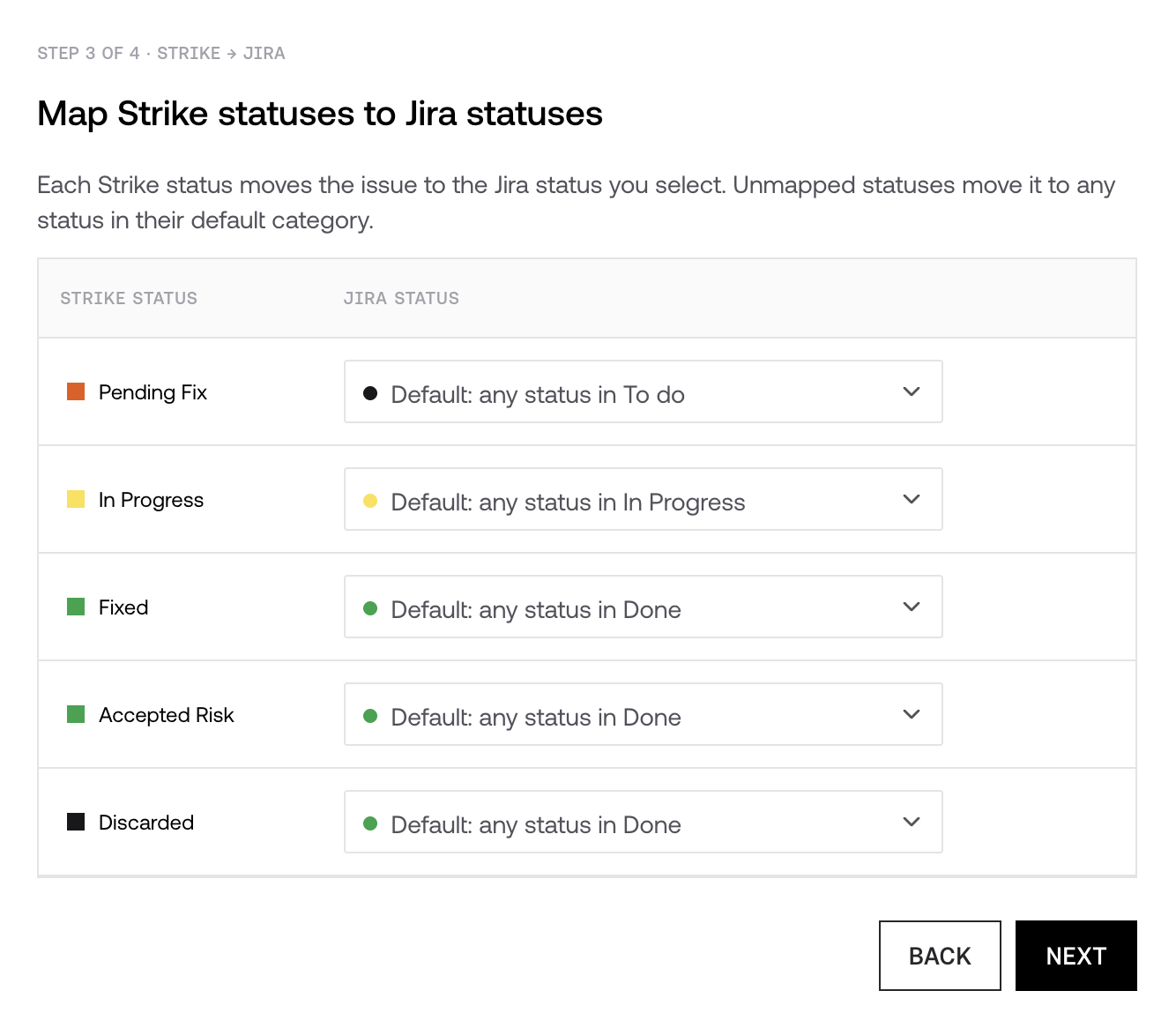
Each vulnerability status in Strike moves the issue to the Jira status you choose. The statuses to map are Pending Fix, In Progress, Fixed, Accepted Risk and Discarded.
This step is optional. If you don't choose anything, Strike moves the issue to any status in the matching category, for example any status in the Done category for a Fixed vulnerability. Choose a specific status only when your workflow has several in the same category and you want a particular one. Several Strike statuses can point to the same Jira status.
Let Jira update your vulnerabilities
This step is optional and the permission applies to your entire organization. With the switch off, nothing that happens on your board changes Strike.
With the switch on, you choose what each of your Jira statuses means when an issue enters it:
Option | What it does in Strike |
Nothing | Nothing. Strike ignores that status. |
Work started | Moves the vulnerability to In Progress. |
Fix claimed · Strike retests | Strike retests the vulnerability before closing it. |
Mark as Accepted Risk | Closes the vulnerability as Accepted Risk. No justification travels over from Jira. |
Mark as Fixed, no retest | Closes the vulnerability as Fixed without a retest. In reports, it appears as not verified by Strike. |
Strike suggests a default value for each status based on its category in Jira (To Do, In Progress or Done). Each row also shows which Strike status lands there, so you can see both directions before choosing.
Moving an issue out of a status that declares a fix reopens the vulnerability in Strike and cancels the retest if it hasn't started yet.
When the retest finishes, Strike updates the issue: if it confirms the fix, the vulnerability is closed; if the vulnerability is still there, Strike reopens the issue with a comment explaining why.
Disconnect the integration
You can disconnect the integration from the same screen. The issues Strike already created stay in your Jira unchanged. Strike stops creating new issues and updating existing ones until you reconnect.
Frequently asked questions
Which vulnerabilities are sent to Jira?
Only confirmed ones. Vulnerabilities that are still pending triage and discarded ones don't generate any issue.
Can Strike overwrite the changes my team makes to an issue?
No. Strike only writes the fields that belong to it. Labels, assignee, due date, custom fields and comments added by your team are preserved in every update.
Can I send different vulnerabilities to different Jira projects?
Yes, by creating a destination for each one. If a vulnerability fits more than one destination, the most specific one wins.
Why does a vulnerability closed from Jira appear as not verified in reports?
Because Strike didn't retest it. It is the same behavior as when you close a vulnerability as Fixed directly in the platform without requesting a retest. If you prefer it to be verified, use the Fix claimed · Strike retests option instead of Mark as Fixed, no retest.