How to test a mobile app with Projects
Last updated: October 19, 2026
Projects are on-demand offensive security assessments (pentesting), performed by Strikers on a defined scope. Mobile applications are always assessed as a Project, by adding the app as a target within the project.
A Project moves through four stages: Scope, Quote, Test, and Results. This article walks you through creating the project and adding the app.
Step 1: Create the Project
From the Projects section:
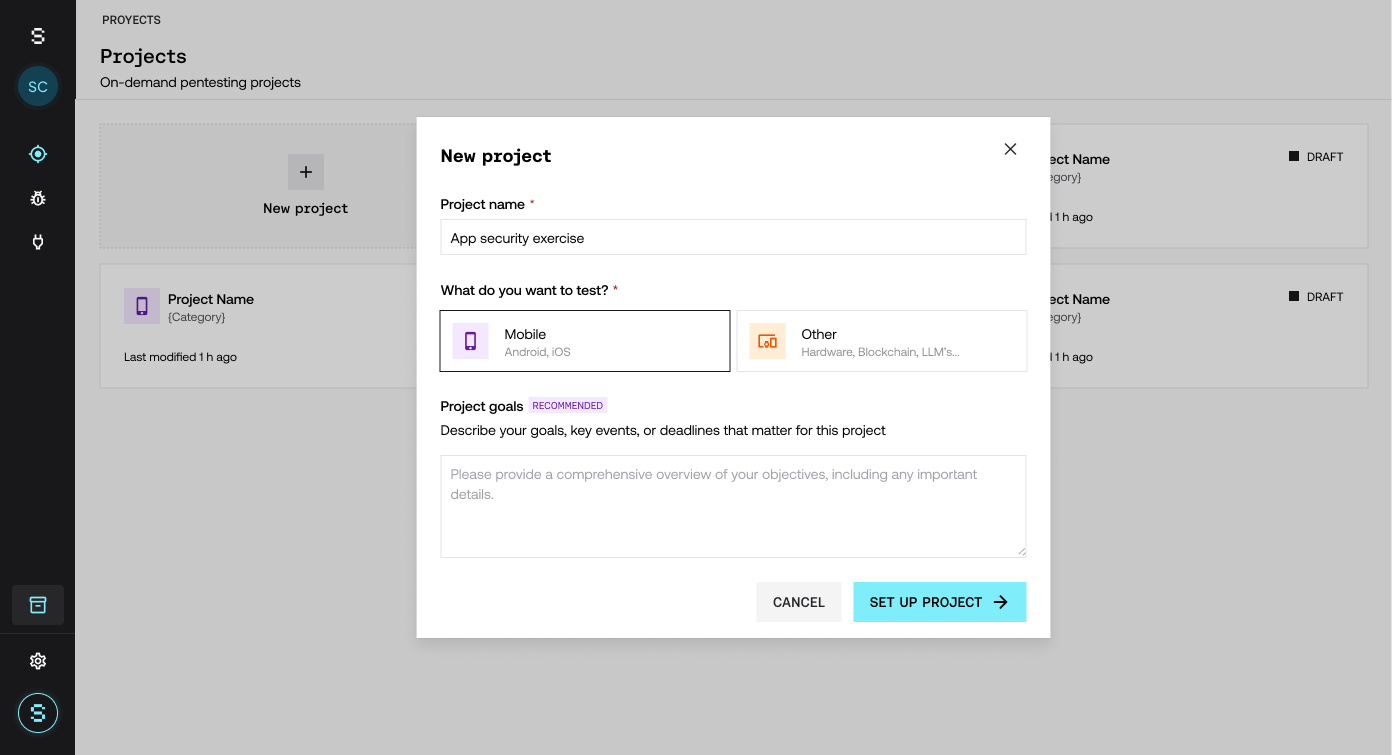
Click New project.
Fill in the Project name (for example, "App security exercise").
Under What do you want to test?, choose Mobile (Android, iOS).
Under Project goals, describe your goals, key events, or important dates for the project.
Click Set up project.
Step 2: Define the scope
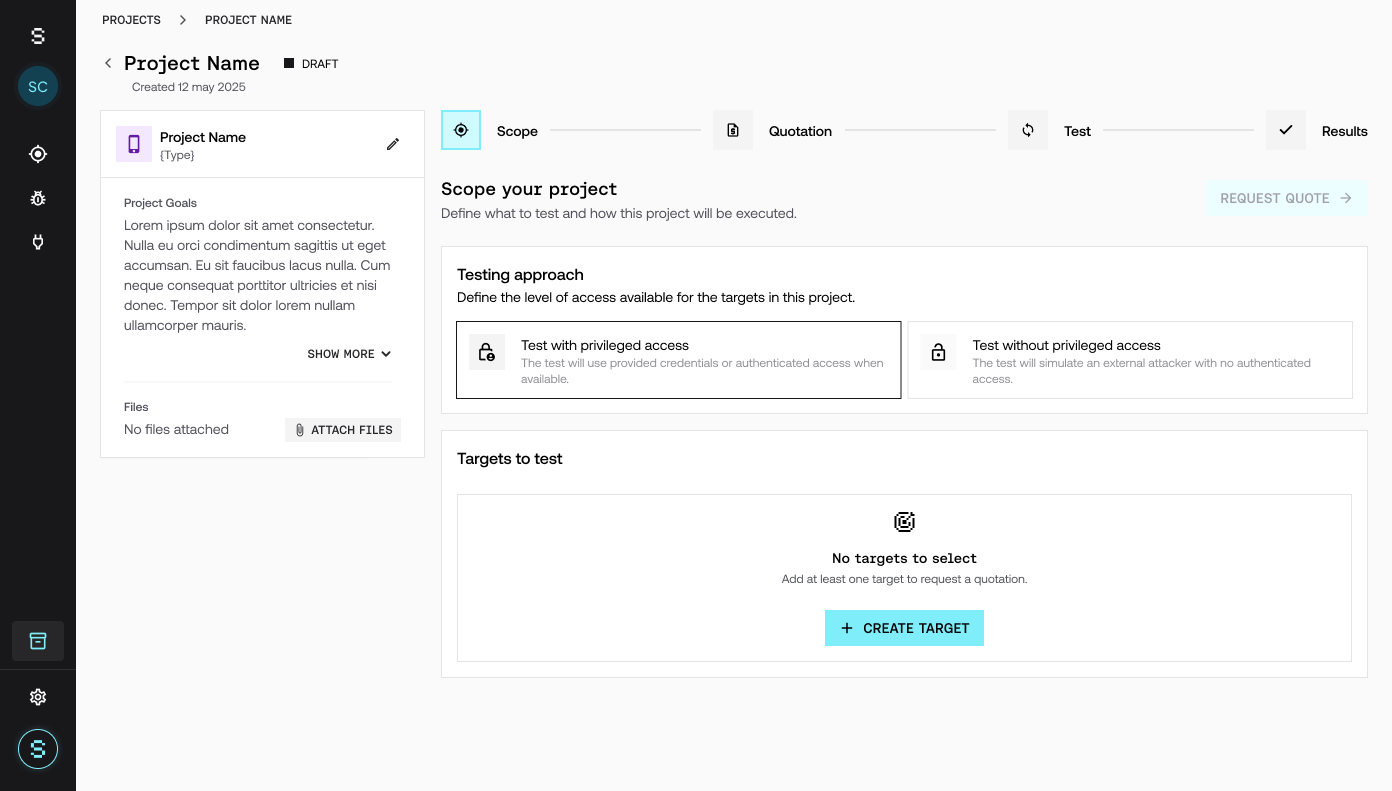
In the Scope stage, you define what will be tested and how:
Testing approach: choose the access level for the assessment:
Test with provided credentials: the testing uses the credentials you provide to assess the authenticated areas of the application.
Test without credentials: the testing simulates an external attacker, with no authenticated access (blackbox).
Targets to test: add at least one target with Create target. You need at least one target to request the quote.
Optionally, you can attach supporting documentation with the Attach files button in the left panel.
Step 3: Add the app as a target
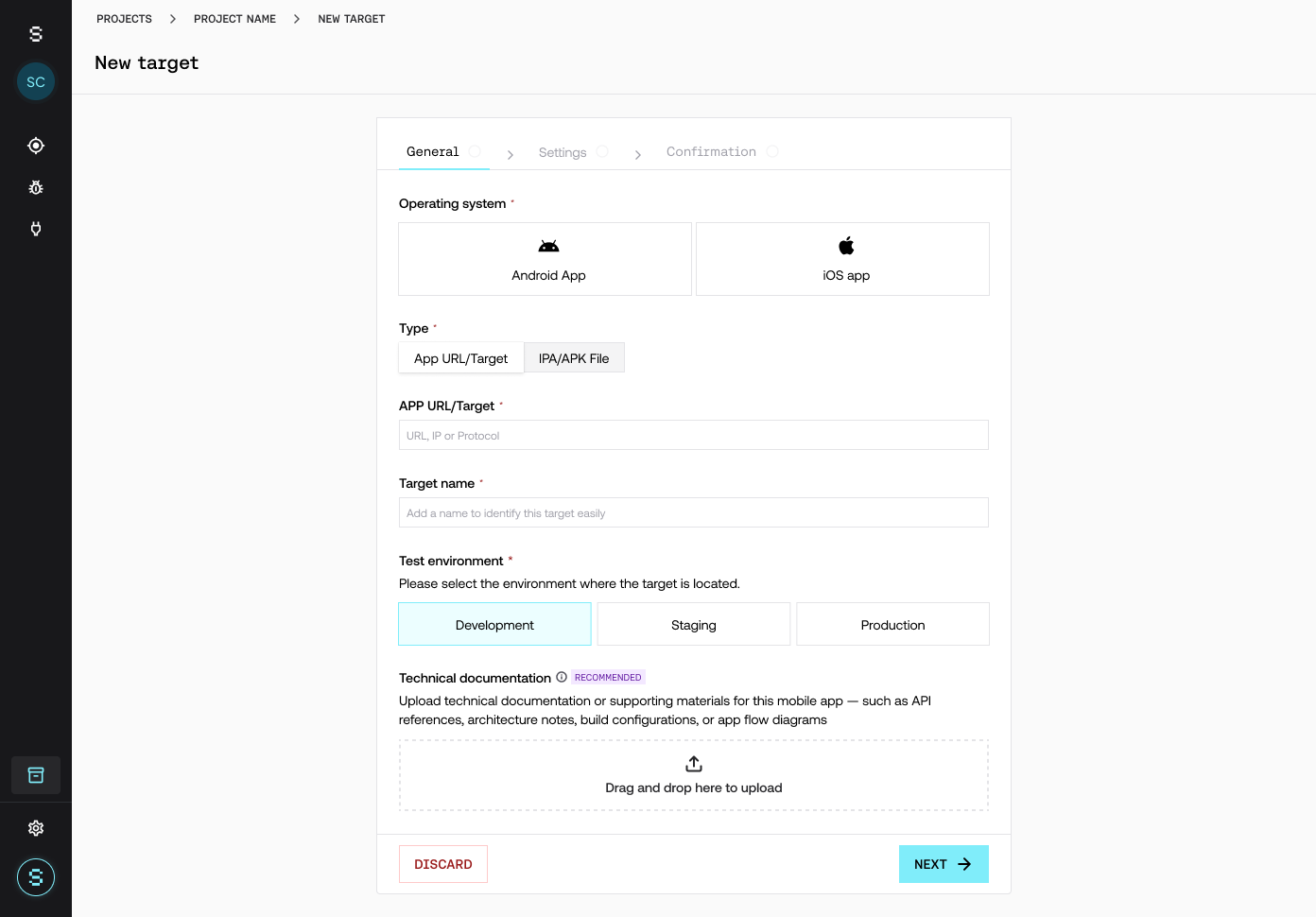
When you click Create target, the target setup opens in three steps: General, Settings, and Confirmation. In the General step, you enter the app details:
Operating system: choose Android App or iOS app.
Type: choose how you will provide the app:
App URL/Target: if the assessment is on a URL, IP, or protocol. Fill in the APP URL/Target field.
IPA/APK/AAB File: if you will upload the installable file. Upload the file with Select file (IPA for iOS, APK or AAB for Android).
Target name: enter a name that lets you identify the target easily.
Test environment: select the environment where the target is located: Development, Staging, or Production.
Technical documentation (recommended): you can upload supporting documentation for the app.
Complete the General step and continue with Next until you confirm the target.
What you need to add the app
The app's operating system (Android or iOS).
The installable file (IPA, APK, or AAB) or the URL/Target, depending on how it will be assessed.
The environment where the target is located (Development, Staging, or Production).
Some applications include additional protections that may require a specially prepared build for the assessment to be thorough. If this applies to your app, the Strike team will tell you how to proceed.
What happens next in the Project
With the scope defined and at least one target added:
Click Request quote to request the project quote.
The Strike team reviews the scope and tells you how many credits the Project will consume.
If you decide to move forward, Strike confirms that your organization has enough credits.
A Striker is assigned and the run begins (Test stage).
When it finishes, you can access the results with the findings and their validation (Results stage).
Frequently asked questions
What is a Project?
It is an on-demand offensive security assessment (pentesting), performed by Strikers on a defined scope. It moves through the Scope, Quote, Test, and Results stages. For more details, see Projects: on-demand pentesting.
How is a Project paid for?
With your organization's credits. When quoting, the Strike team tells you how many credits it will consume. If the Project was defined with your sales team before you signed up, you should already have credits allocated to run it.
Where do I upload my app's APK, IPA, or AAB?
In the Scope stage, click Create target. In the General step, choose the IPA/APK/AAB File type and upload the file with Select file.
What is the "testing approach"?
It is the access level of the assessment. You can choose Test with provided credentials, which uses the credentials you provide to assess authenticated areas, or Test without credentials, which simulates an external attacker with no authenticated access.
Can I assess an app by URL instead of uploading the file?
Yes. In the target's Type field, choose App URL/Target and enter the URL, IP, or protocol.
Can I test Android and iOS in the same Project?
Yes. Add each one as a separate target from Create target: one with Android App and another with iOS App in the Operating system field.
Is it mandatory to attach documentation or fill in the project goals?
No. Documentation, Project goals, and the target's technical documentation are recommended, not mandatory. Filling them in helps make the assessment more complete and better focused.