How to add a new asset
Last updated: October 16, 2026
An asset is a business resource you want to test, for example a web application or an API. To test it, you include it in a Threat Emulation. A well-configured asset gives you more accurate results and greater coverage.
To create an asset you need the Owner or Operator role.
You can create an asset in two ways:
From the Assets section, with + Add New Asset. This is what this article explains.
From a Threat Emulation, in the Scoping step, by adding a new asset. For more detail, see How to create a Threat Emulation.
In both cases, the general information, credentials, and technical documentation are saved in the asset and inherited by the Threat Emulations that include it. For more detail, see How configuration is inherited between an asset and a Threat Emulation.
Step 1: General
Click + Add New Asset from the Assets section. In this step you define the identity and context of the asset.
Basic information
Target reference: the address of the asset, for example
https://app.mycompany.com.Asset name: a clear name to identify it, for example "Backoffice" or "Payments API".
Environment: the environment where it is deployed: Development, Staging, or Production.
Relevance: how critical the asset is for your business.
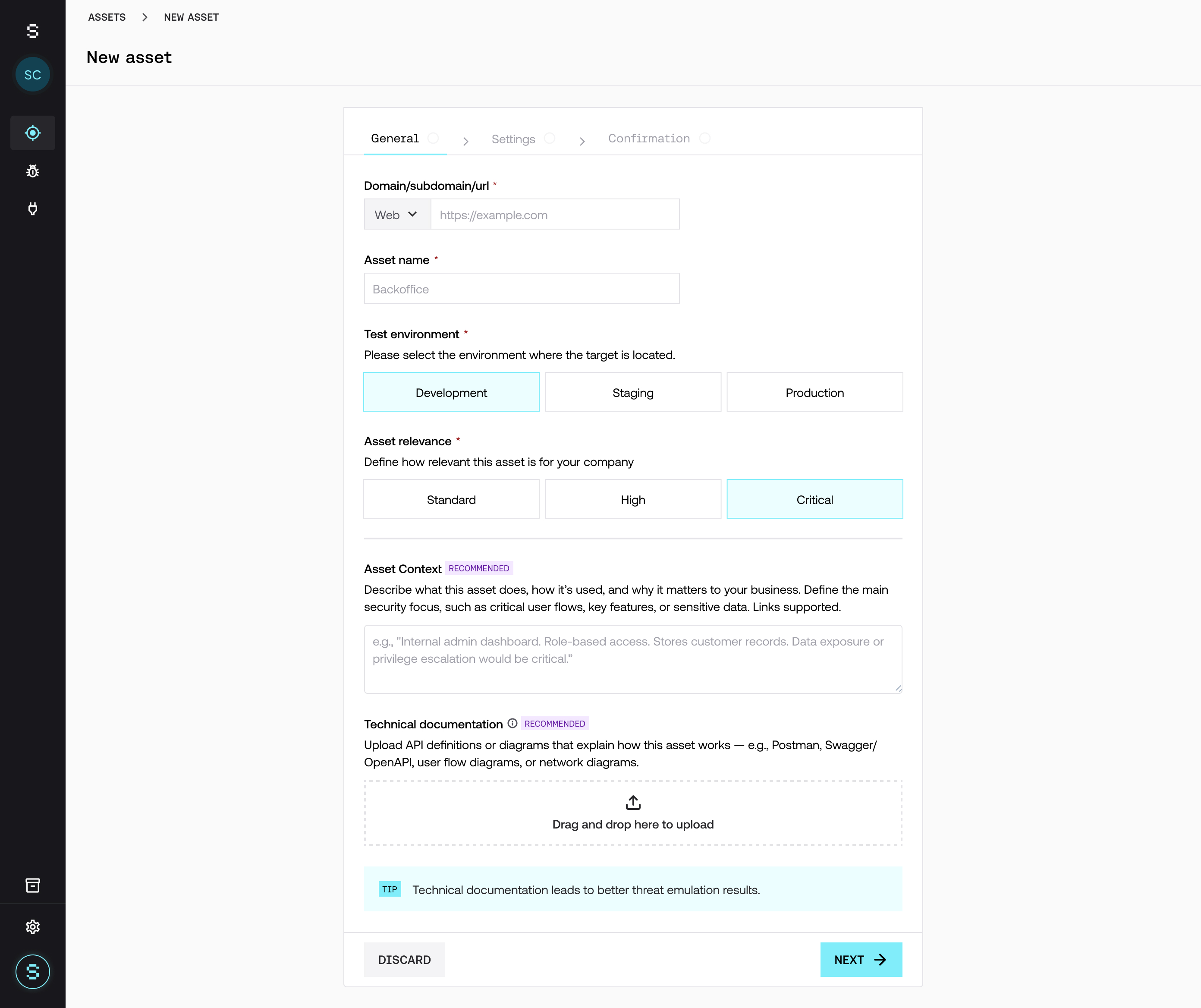
Description (recommended)
In Description you describe what the asset is and how it works. This is the context Strike's AI agent uses to simulate more realistic attack scenarios. For example:
What the asset does and its main flows.
User roles and what each one can do.
Sensitive data and relevant business logic.
Technology stack and architecture, if applicable.
Avoid including prompts such as "act as a pentester", complete lists of endpoints (these go in the technical documentation), or generic context that adds no value. For more ideas, see What to include in an asset's Description and in Additional information.
Technical documentation (recommended)
You can attach files that help in understanding the system:
Swagger / OpenAPI or Postman collections, with the complete list of endpoints.
Architecture diagrams or diagrams of key business flows, such as login, payments, or onboarding.
PDFs with functional documentation.
This information helps identify more complex attack paths, improve testing coverage, and reduce false positives. The asset's technical documentation is also used in the executions of the Threat Emulations that include it.
Step 2: Settings
In this step you configure how Strike's AI agent will interact with the asset.
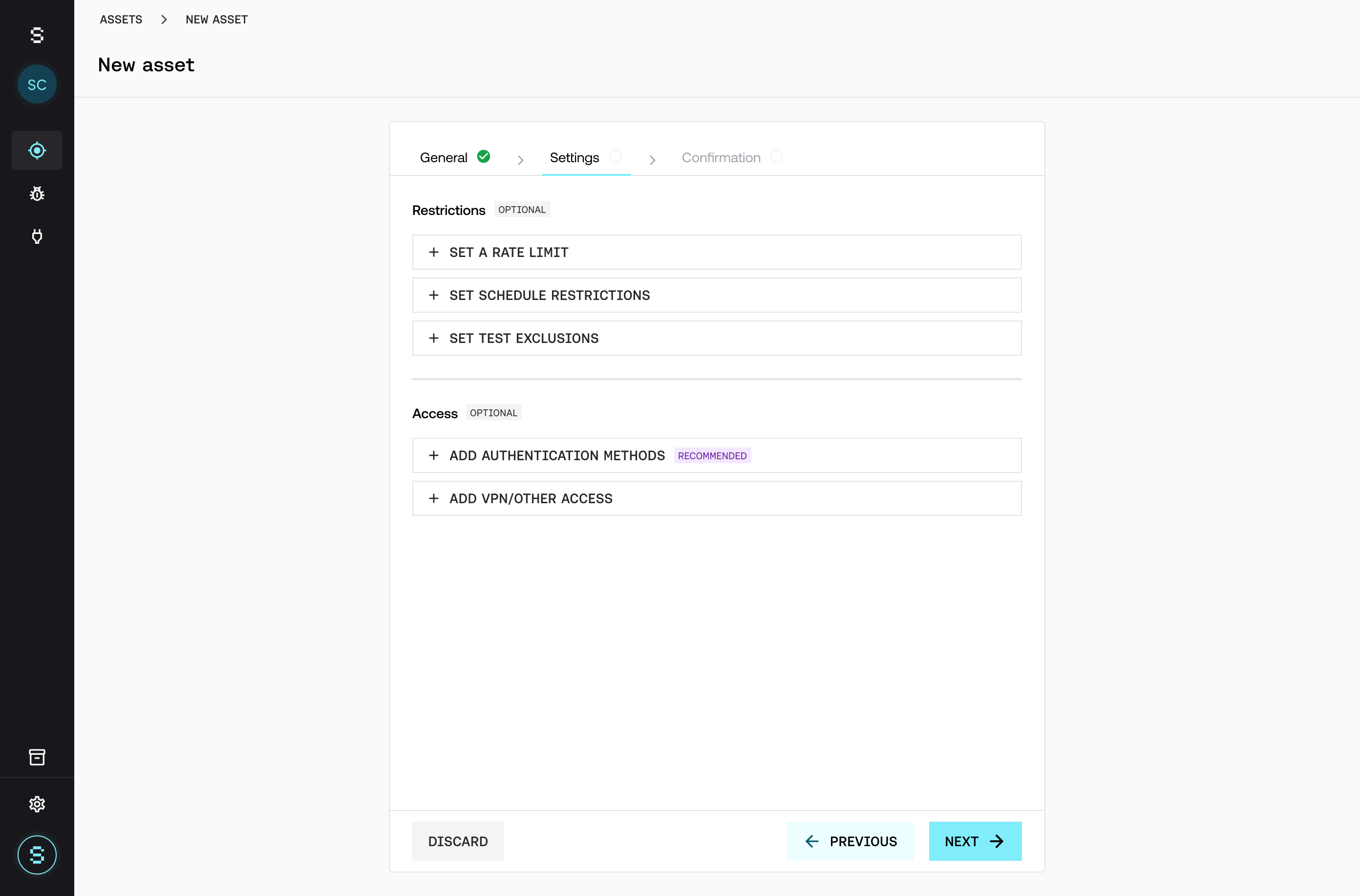
Authentication (recommended)
Credentials let you also test what is behind the login. Without credentials, testing is limited to the public surface. Supported types:
Username and password
Cookies
Custom headers
Recommendations:
Use testing credentials, not real users.
For APIs, prefer authentication through headers (Authorization).
Add one credential for each role you want to evaluate.
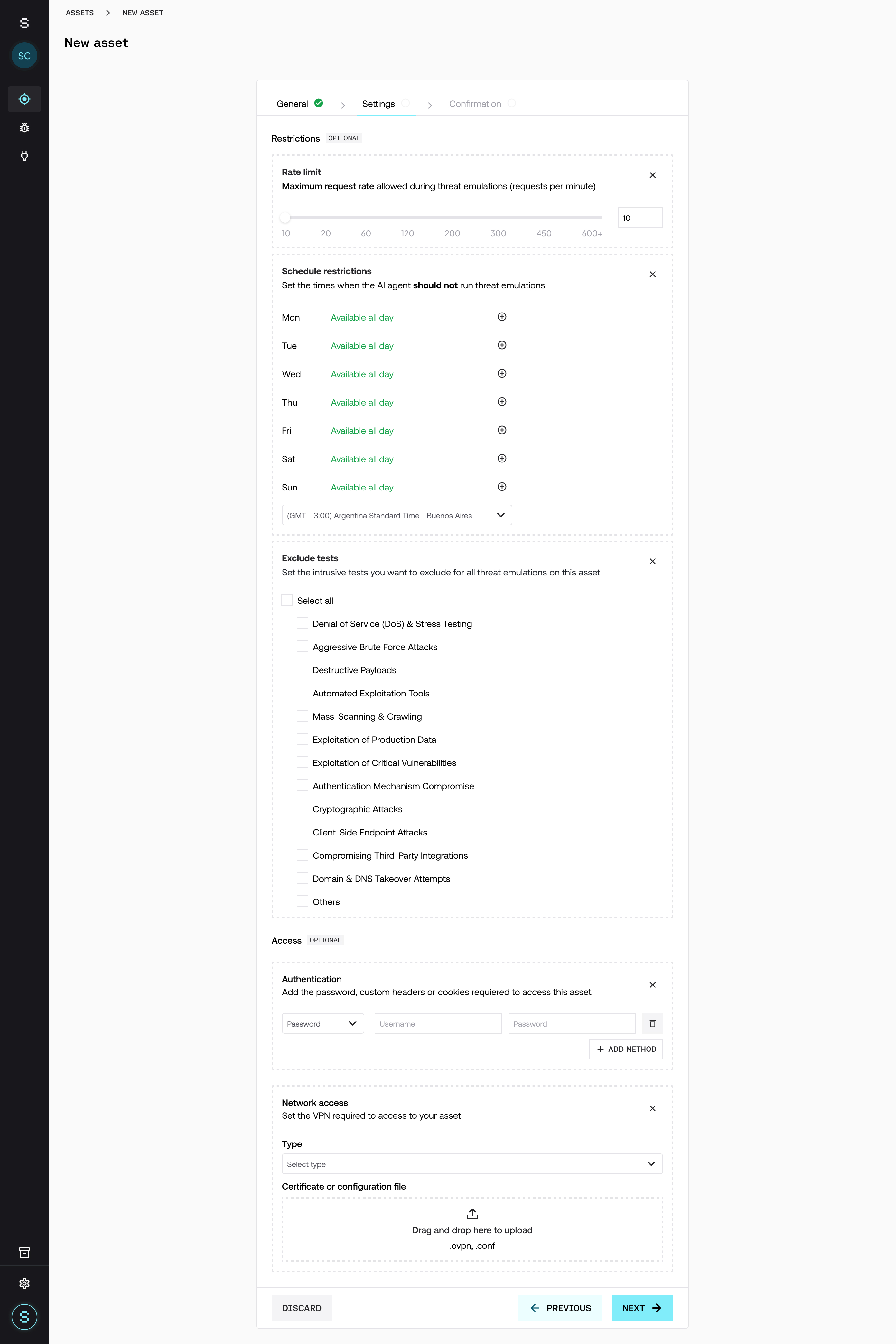
Testing restrictions
They let you adapt the testing to the asset's environment:
Rate limit: maximum number of requests per minute.
Schedule restrictions: time windows in which testing is not allowed.
Test exclusions: types of tests you do not want to run, for example DoS and stress testing, aggressive brute force, or destructive tests.
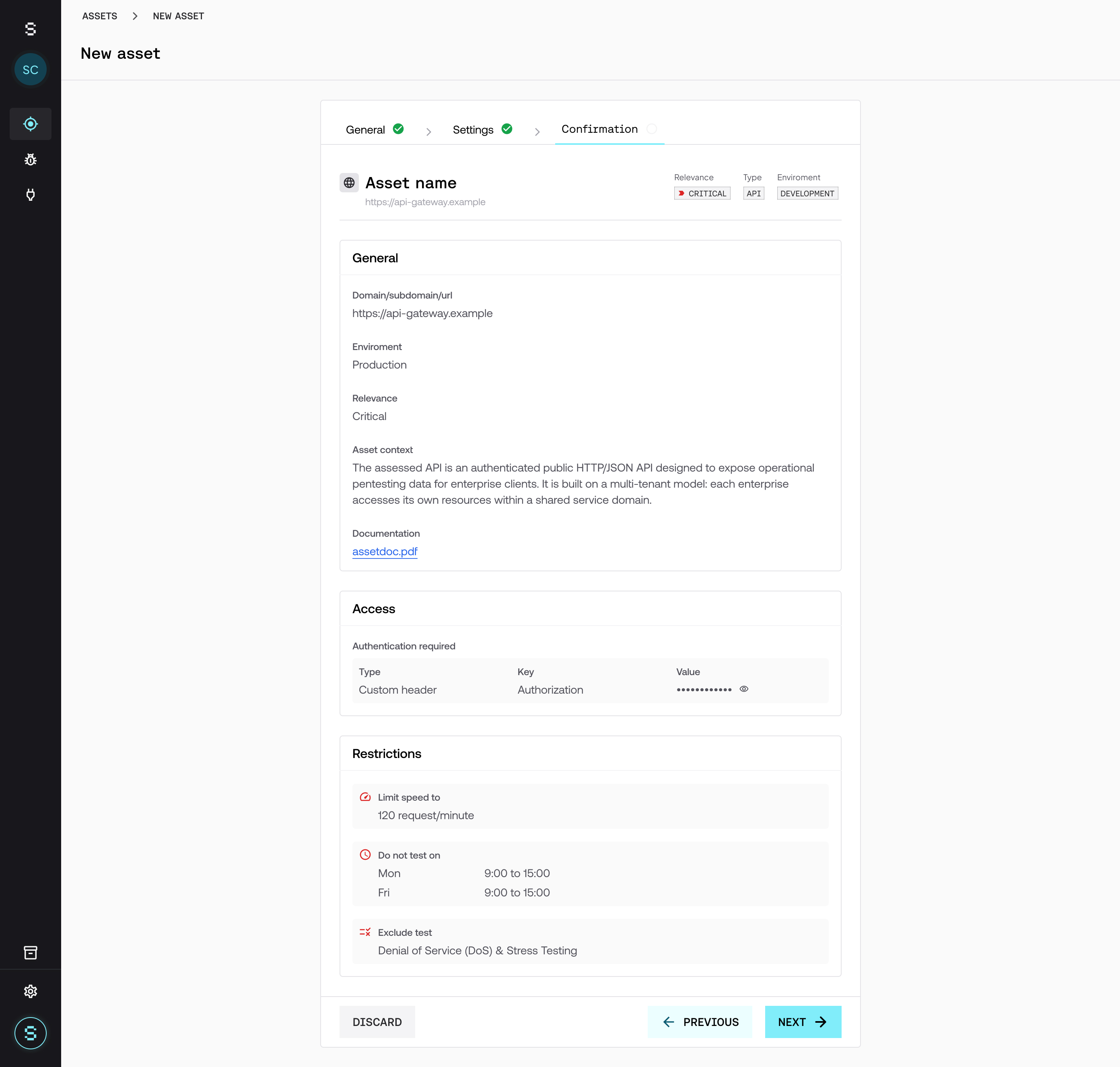
Step 3: Confirmation
Before creating the asset, the platform shows you a summary of the configuration: general information, Description and documentation, credentials, and restrictions. Review it and confirm.
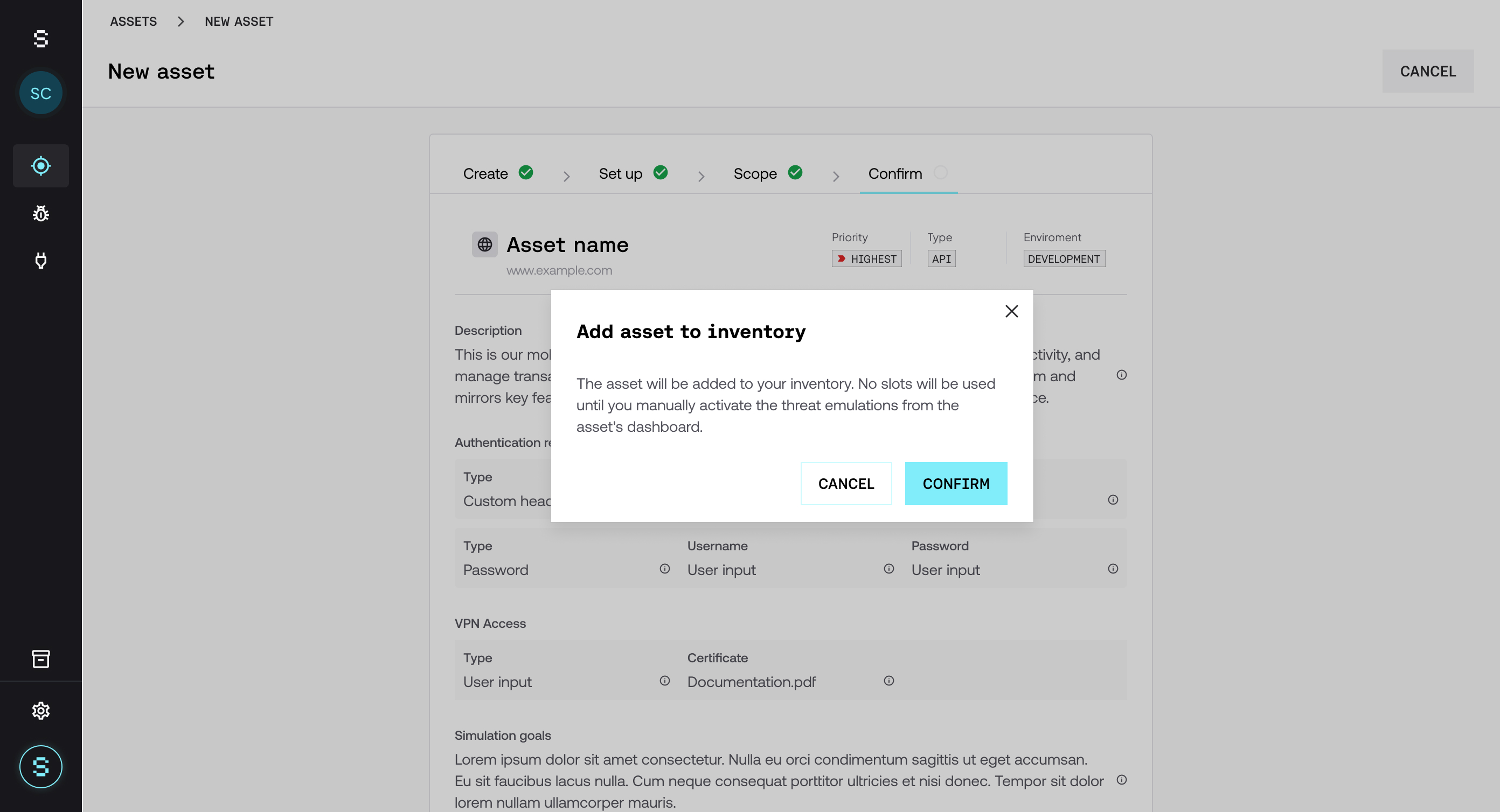
After creating the asset
Creating the asset does not start testing or consume credits. To test it, include it in a Threat Emulation. You can do it in two ways:
From the asset's detail view
Open the asset's detail view.
Click Start test. The platform takes you to the Threat Emulation creation flow with that asset already loaded in the scope.
Complete the configuration and confirm.
From the Threat Emulations section
Go to the Threat Emulations section and create a new Threat Emulation.
In the Scoping step, click Browse inventory and select the asset.
Complete the configuration and confirm.
For more detail on the creation flow, see How to create a Threat Emulation.
Before the first execution, make sure Strike's IPs are allowlisted in your firewall or WAF. For more detail, see How to allowlist Strike's IPs.
You can edit the asset at any time from its detail view. Changes impact the Threat Emulations that use the asset's default configuration.
Checklist
Before including the asset in a Threat Emulation, verify that it has:
A clear and relevant Description.
Technical documentation attached (OpenAPI, Postman, PDFs).
Credentials configured and valid.
The correct Environment.
The Relevance defined.
Frequently asked questions
Does creating an asset consume credits?
No. Credits are consumed when a Threat Emulation that includes the asset is executed.
Can I create an asset directly from a Threat Emulation?
Yes. In the Scoping step, add a new asset. The configuration you enter there is saved as the asset's default configuration.