How the Pre-flight Check works
Last updated: October 20, 2026
The Pre-flight Check is an automatic configuration validation that Strike performs at the start of every Threat Emulation execution. It verifies that the assets in scope are accessible from Strike's infrastructure and that the configured credentials are valid. If it detects a problem, it shows it to you along with the steps to resolve it.
This article explains when it runs, what it verifies, where you see the result, and what to do when something fails.
When it runs
The Pre-flight Check runs at the start of every execution, before testing begins. While it runs, the execution appears in the Verifying configuration status.
What is verified
The check runs two groups of validations on each asset in scope:
Group | What it validates |
|---|---|
Reachability & Accessibility | That the asset exists, responds, and is reachable from Strike's infrastructure. It includes DNS, IPs, geographic restrictions, and protection layers such as WAFs. |
Authentication | That the configured credentials are valid and allow authentication. If the asset has no credentials, testing continues in blackbox mode. |
What blocks testing and what limits it
Not all problems have the same impact. There are two categories:
Blocking issues: the execution does not start
The asset is not accessible or the DNS does not resolve.
Access from Strike is blocked (IP restriction or geographic restriction).
The credentials are configured, but they are invalid or authentication fails.
Issues with limitations: the execution runs with limited coverage
A WAF was detected.
The asset has no credentials configured and testing continues in blackbox mode.
Rate limiting or TLS issues were detected.
Blocking issues need you to resolve them and click Retry. Limiting issues do not require immediate action, but resolving them improves testing coverage.
Where you see the result in the Threat Emulation
If the Pre-flight Check finds a problem, you see it in two places:
In the Threat Emulations list: the Threat Emulation appears in the Needs your attention block, above the list. Click View detail to see what happened. Issues are shown grouped by asset, with the ones that block testing first.
In the Threat Emulation's detail view: a banner with the notice appears. From the banner you can click View detail to see the issue or Retry to try again.
Notice | What it means | What to do |
|---|---|---|
Configuration issues found | The execution cannot start because of configuration issues, for example an asset that does not respond or a blocked Strike IP. | Follow the recommendations for each issue, resolve it, and click Retry. |
Configuration check failed | Something failed while verifying the configuration. You do not need to change anything. | Wait a few minutes and click Retry. |
Limited | The execution runs, but something may limit coverage, for example a WAF or a rate limit. | Follow the recommendations to get complete results. Testing continues even if you make no changes. |
While there is a blocking issue, the execution stays in the Configuration blocked status, and the notice is also shown inside that execution. For more detail on statuses, see Statuses of a Threat Emulation and its executions.
Where you see the result in the asset
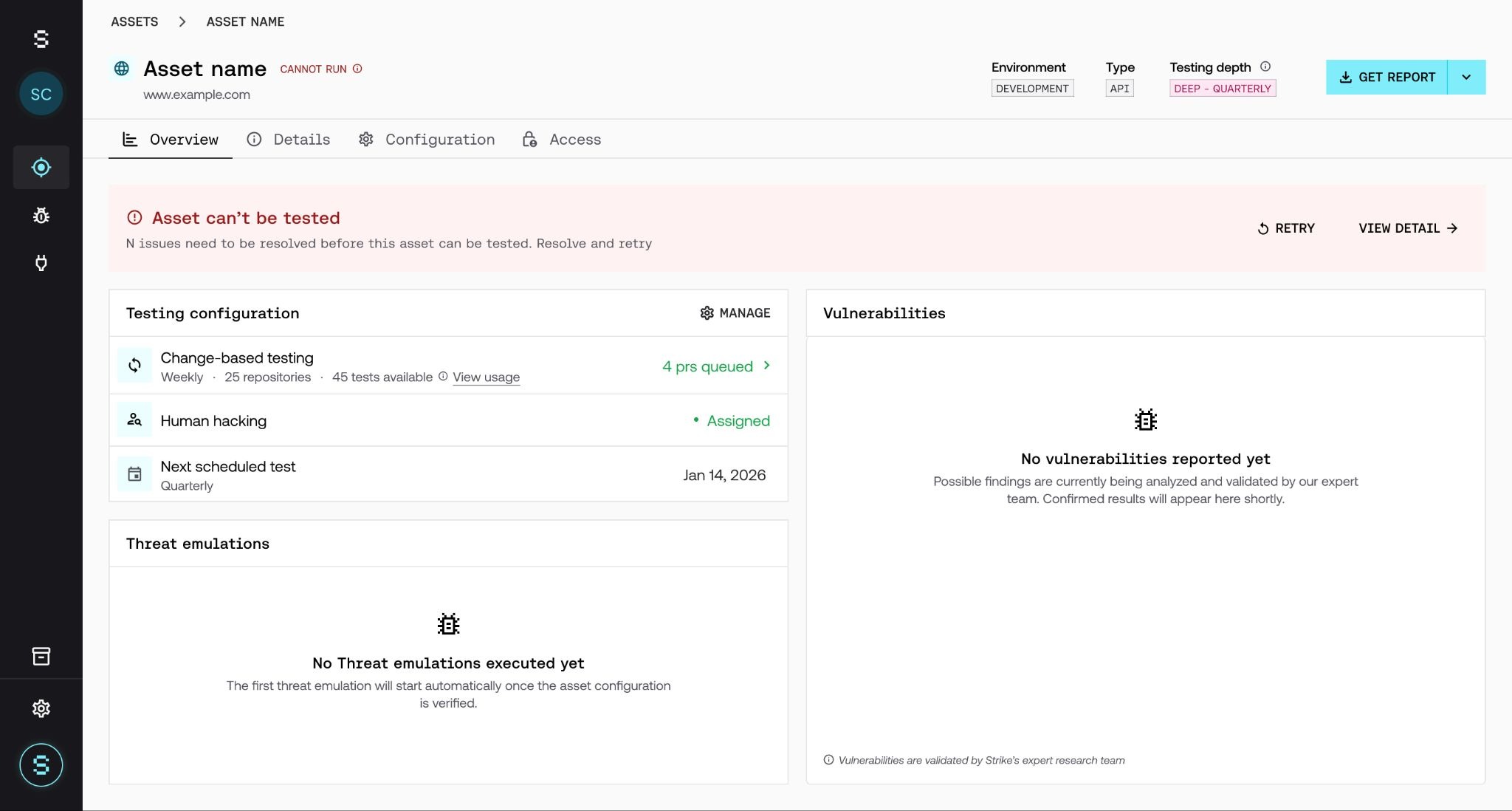
The result of the check is also shown as a badge next to the asset's name, in the assets list and in each asset's detail view.
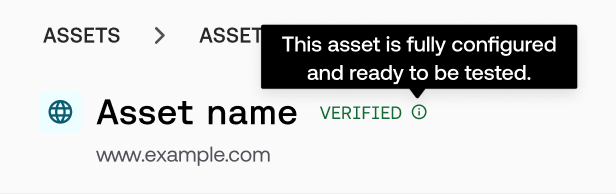
Badge | What it means | Tooltip |
|---|---|---|
VERIFYING… | The check is running right now. | No tooltip |
VERIFIED | Everything is OK. The asset is ready to be tested with full coverage. | This asset is fully configured and ready to be tested. |
LIMITED | Testing can run, but there are active limitations, for example a detected WAF or an asset without credentials. | Test will run, but some configuration issues may limit results. |
CANNOT RUN | There are one or more blocking issues. Testing cannot start until you resolve them. | Unable to run tests due to configuration issues. |
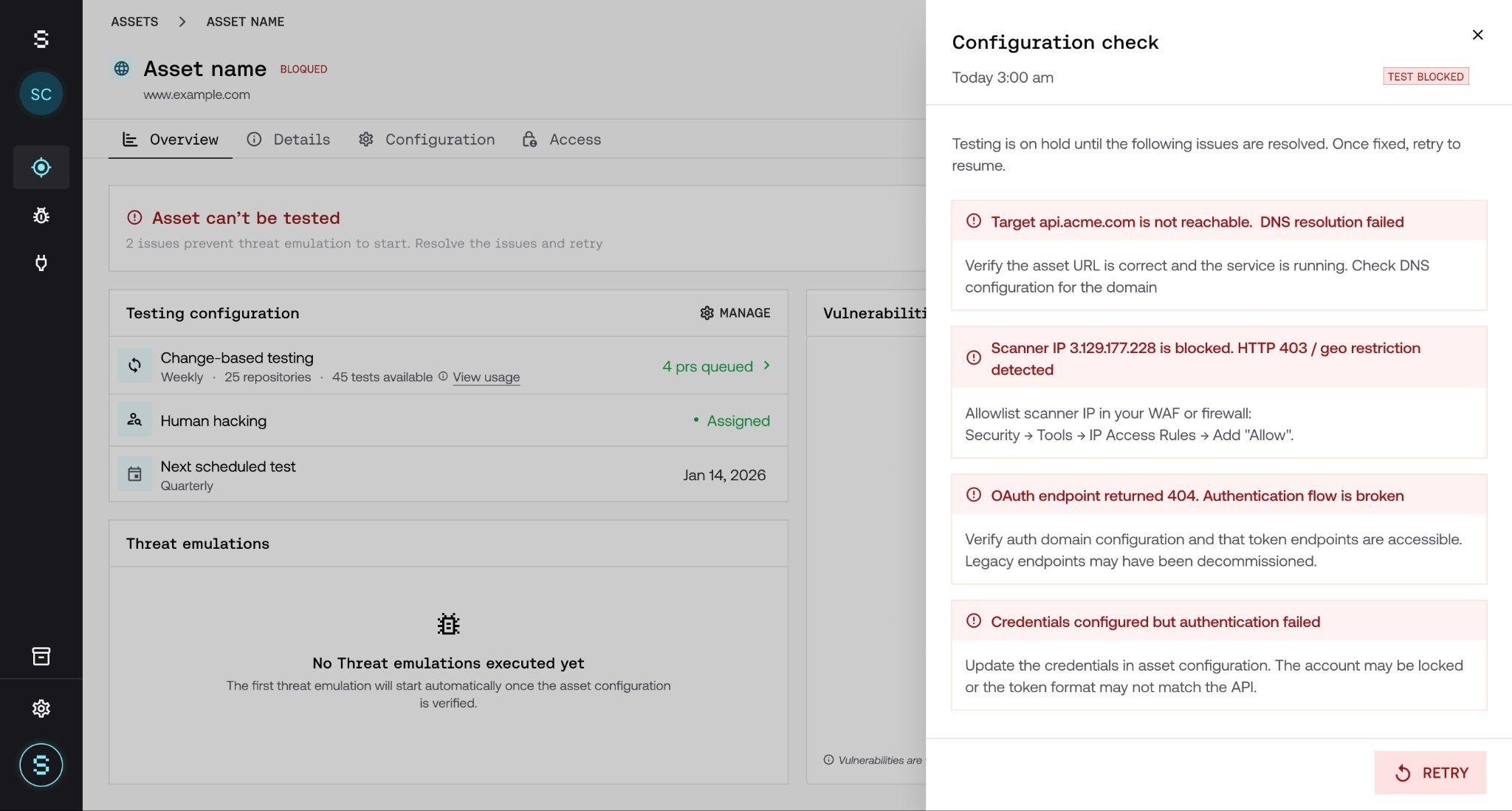
To see the details, click the badge or the asset's error banner. A panel opens with the description of the issue, its cause, and the steps to resolve it.
What to do when something fails
The most common issues and how to resolve them:
Asset not reachable or DNS that does not resolve: verify that the URL is correct and that the service is active.
Strike IP blocked: allowlist Strike's IPs in your firewall or WAF. For more detail, see How to allowlist Strike's IPs.
Invalid credentials: update the credentials from the asset's detail view. If you modified them inside the Threat Emulation, update them there. For more detail, see How configuration is inherited between an asset and a Threat Emulation.
Once you resolve the issue, click Retry. You can do it from the Threat Emulation (in the Needs your attention block or in the banner of its detail view) or from the asset's panel.
Frequently asked questions
Does the Pre-flight Check interrupt an execution that is already in progress?
No. The check runs before testing starts. If it fails, the execution does not start, but it does not cancel anything that is already running. If the asset has a problem in the middle of an execution, testing is interrupted and we let you know what happened.
What do I do once I resolve a blocking issue?
Click Retry from the Threat Emulation or from the asset's panel. It is the fastest way to resume testing.
I have a WAF because of a compliance requirement. Will it block me?
No. If a WAF is detected, testing runs anyway, but you will see a notice that coverage may be limited. You do not need to do anything.
Can I leave blackbox mode?
Yes. Add credentials to the asset at any time. The Pre-flight Check validates them in the next execution.
Does the Pre-flight Check detect vulnerabilities?
No. It only verifies that the assets are in a condition to be tested. Detecting vulnerabilities is the job of the Threat Emulation.