How to configure a Change-based Threat Emulation
Last updated: October 20, 2026
A Change-based Threat Emulation is a Threat Emulation of the Change-based type: it runs automatically when there are changes in the repositories you choose. It helps you shorten the time between a deploy and its validation, so that no relevant change goes unreviewed until the next recurring execution.
How it works
When you configure a Change-based Threat Emulation, Strike listens to the events of the repositories you selected. Every time the trigger you chose is met, an execution is generated: Strike's AI agent tests the Threat Emulation's assets, focused on the included changes.
Automatic: it runs on its own, you do not have to launch it every time.
Focused on the changes: each execution centers on the pull request or release that triggered it.
Configurable: you choose whether it runs for every pull request or for every release.
Repositories define which changes trigger an execution, but they do not modify the scope of the Threat Emulation: the execution runs on the assets you included in the Scoping step.
Strike does not access the content of your code. The GitHub integration has read-only permissions on repository and pull request metadata, and it receives events through webhooks. It cannot modify your repositories.
Trigger options
Option | When it runs |
|---|---|
Per pull request | Every time a pull request is merged into the main branch. |
Per release | Every time a new release is published. |
Before you start
Have the Owner or Operator role in the Strike organization.
Have admin access to the GitHub organization where your code lives, if you have not connected GitHub in Strike yet.
How to configure it
Create a Threat Emulation and define its scope. For more detail, see How to create a Threat Emulation.
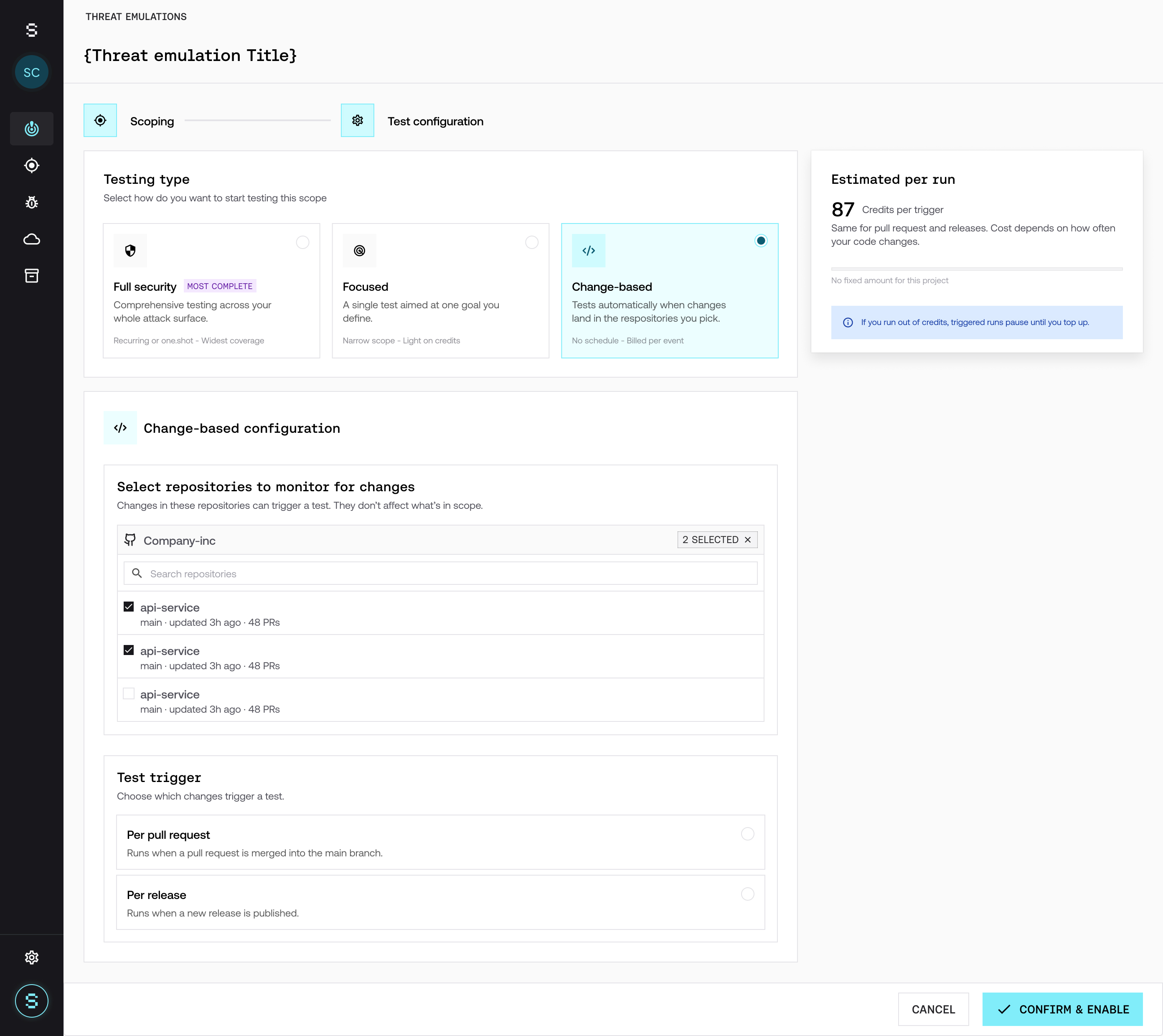
In the Test configuration step, choose Change-based.
If GitHub is not connected yet, click Connect GitHub and then Continue with GitHub. In GitHub, grant access to all the repositories Strike may need. The connection is made only once, at the organization level.
Select the repositories you want to monitor.
In Test trigger, choose Per pull request or Per release.
Optional: complete Additional information with important details about your scope.
Click Confirm & enable.
From that moment on, the Threat Emulation listens for changes in the selected repositories.
Credits
Each Change-based execution consumes a fixed amount of credits, which is the same for pull requests and releases. It does not depend on the size of the change. When you configure it, the platform shows you that value per execution.
Total consumption depends on how many pull requests or releases are generated in your repositories. Credits come from the same plan as the rest of your Threat Emulations.
If your plan runs out of credits, executions are paused until you add credits. To add credits, contact your Customer Success Manager.
For more detail, see Credits: what they are and how they are consumed.
Frequently asked questions
Do I need to involve the development team to configure it?
Not necessarily. If you have admin access to the GitHub organization, you can complete the entire setup yourself.
Can Strike see or modify my code?
No. The integration has read-only permissions on repository and pull request metadata. It does not access the content of the code and cannot modify it.
Do I have to connect GitHub every time I create a Threat Emulation?
No. The connection is made only once, at the organization level. In each Threat Emulation you only choose which repositories to monitor.
Can I monitor several repositories in the same Threat Emulation?
Yes. You can select all the repositories that apply.
Does a large pull request consume more credits than a small one?
No. Each execution consumes the same fixed amount, regardless of the size of the change.
Can I choose the depth or define restrictions?
No. In a Change-based Threat Emulation you only choose the repositories, the trigger, and, if you want, additional information.
Does it only integrate with GitHub?
For now, yes. If you use another tool, such as GitLab or Jenkins, contact your Customer Success Manager so we can add your case to our prioritization.