How to set up the AWS connection
Last updated: July 1, 2026
This guide explains how to configure Strike and connect your AWS environment to start discovering and monitoring your external assets.
Prerequisites
Before configuring Strike, make sure you have:
Access to your AWS account with IAM permissions to create roles.
Your organization's cloud account details.
Connect your AWS account
Strike uses a secure, read-only IAM role to access your cloud environment. No permanent credentials are required.
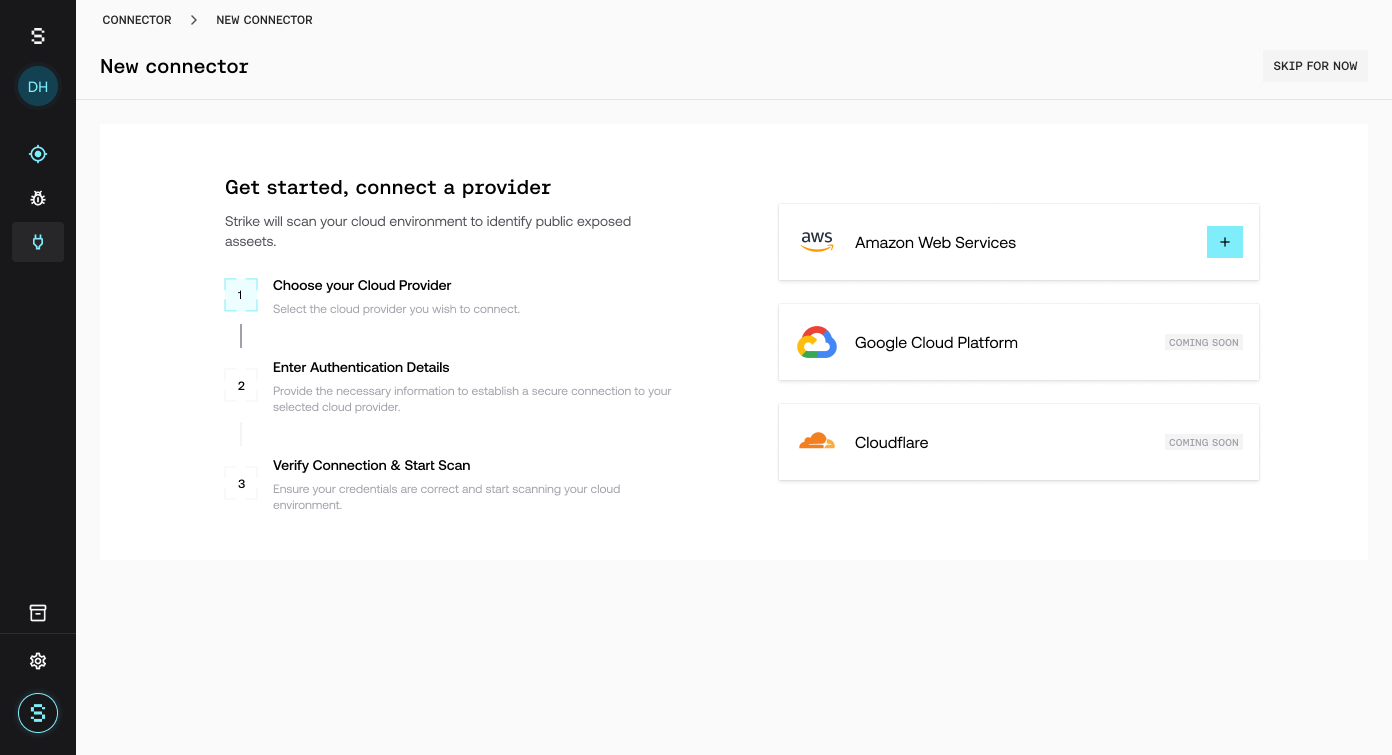
Step 1 — Select a cloud provider
Go to Connectors.
Select Amazon Web Services.
(GCP and Cloudflare will be available soon.)
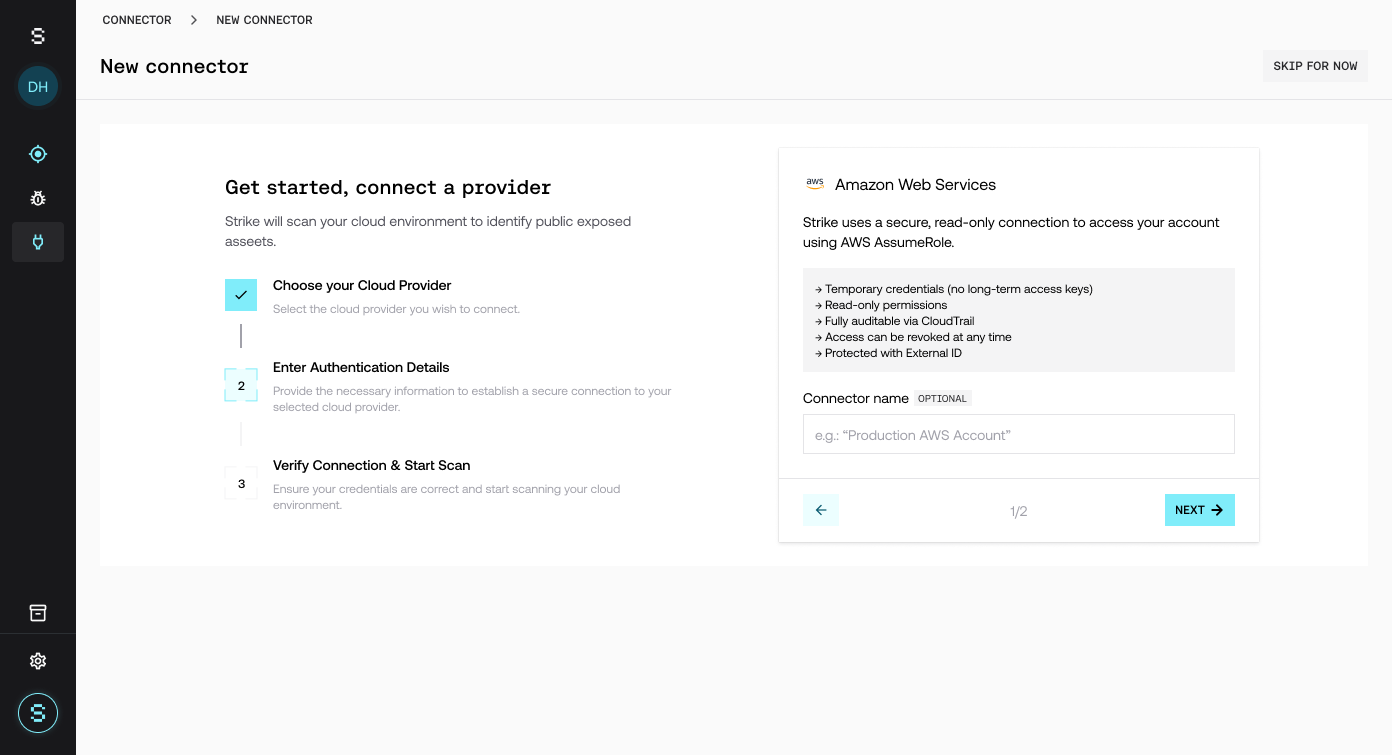
Step 2 — Name your connector
Give your connector a name. It will be visible and editable in the connectors list. Strike connects to your AWS account using AWS AssumeRole with read-only access.
Step 3 — Create the IAM role
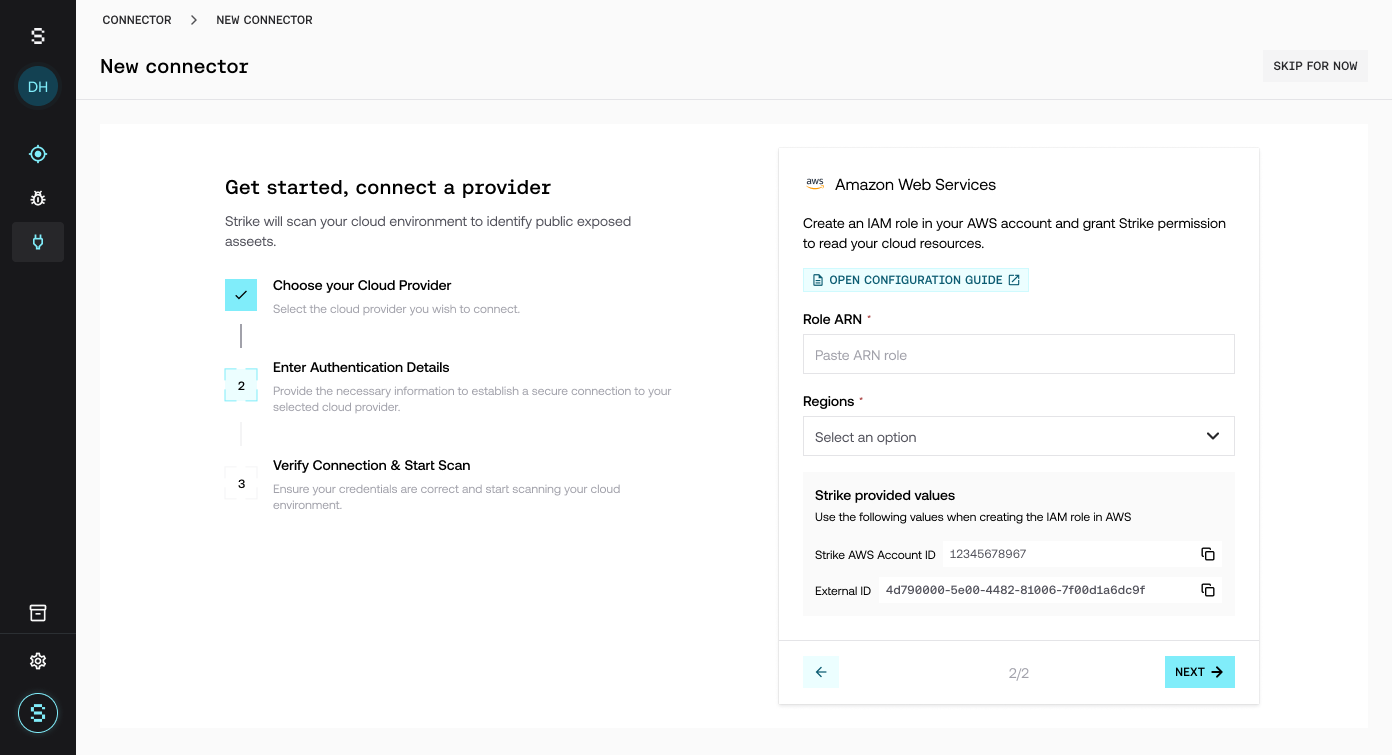
Open the Configuration Guide in Strike and follow these steps in AWS:
Go to AWS Console → IAM → Roles.
Click Create role.
Select AWS account → Another AWS account.
Enter the Strike AWS Account ID.
Enable Require external ID and paste the provided value. Do not enable MFA for this role.
Step 4 — Attach permissions
Search for SecurityAudit and select the AWS-managed policy.
Click Next.
Set the role name:
StrikeSecurity-SecurityAudit.Suggested description:
Read-only access for Strike.Click Create role.
Copy the Role ARN.
⚠ The role name must start with StrikeSecurity to prevent accidental or unauthorized role assumptions.
Step 5 — Add role details in Strike
In Strike, enter:
Role ARN
Regions to scan
Click Next.
Verify the connection
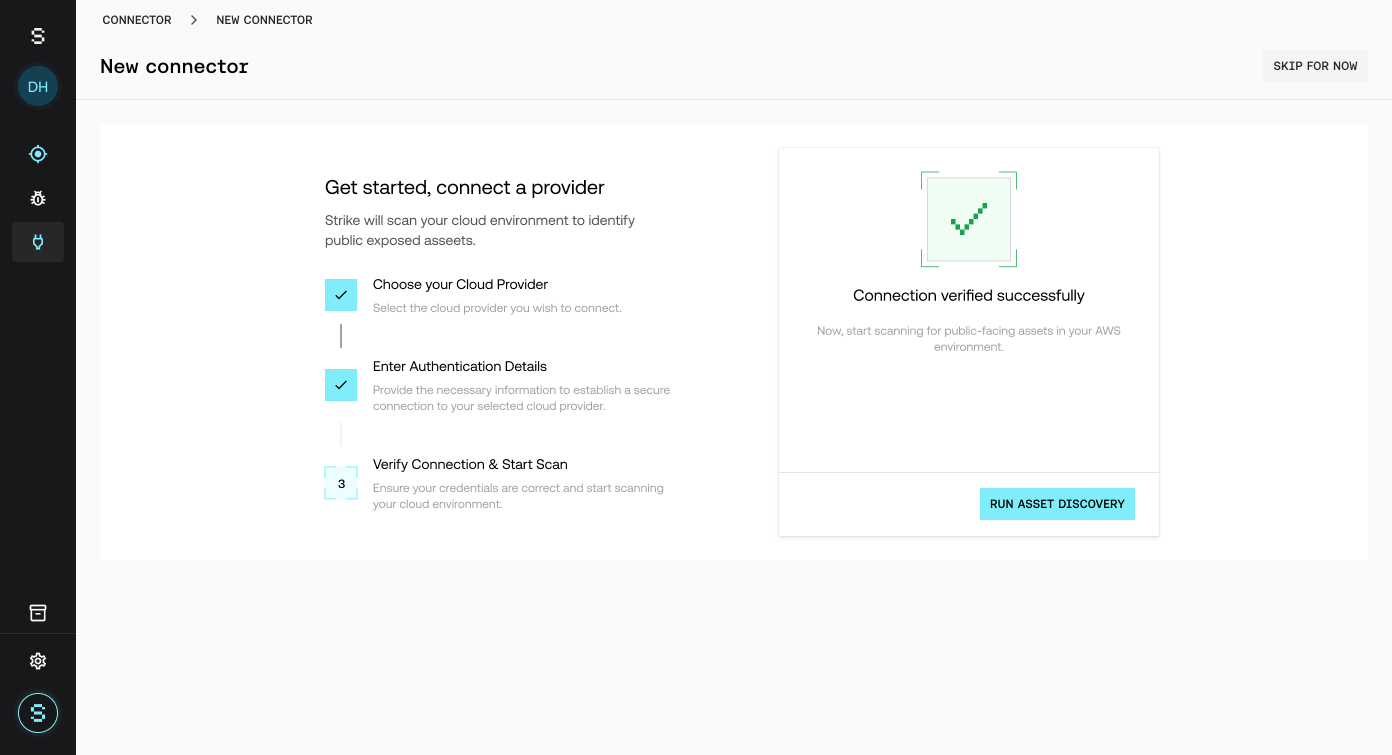
Click Test & Connect to verify access. If successful, Strike will confirm the connection and enable asset discovery.
Run asset discovery
After verification, click Run asset discovery to start scanning your environment for public-facing assets.
Discovered assets will appear in the Assets Inventory.
Managing connectors
You can manage connectors from the Connectors page, available on the sidebar.
Connector statuses
Connected
Pending setup
Failed
Inactive
Actions
Test connection
Edit connector
Delete connector
Roles and permissions
Strike uses read-only permissions to:
Discover cloud assets.
Identify exposed services.
Collect metadata for risk analysis.
Strike cannot modify or delete any cloud resources.
Frequently asked questions
Does Strike store my AWS credentials?
No. Strike uses temporary credentials via AssumeRole.
How do I revoke access?
You can disable the connector in Strike or delete the IAM role in AWS.
Can I connect multiple AWS accounts?
Yes. Each account must be added as a separate connector.