How to add two-factor authentication (2FA) to a credential
Last updated: October 20, 2026
Strike can test assets protected by two-factor authentication. When you add a User & Password credential, you choose how Strike should complete the second factor: with an authenticator app (TOTP) or with email verification codes sent to a mailbox managed by Strike.
This article covers the two supported methods, how to configure each one, and the most frequently asked questions about their setup.
How it works
Most production apps require 2FA when logging in. Strike completes the second factor the same way a real user would, and then runs full authenticated testing on your asset, covering vulnerabilities that appear behind the login (privilege escalation, IDOR, broken access control, business logic flaws).
2FA is optional and is configured per credential. You can combine credentials with and without 2FA on the same asset, and change a credential's method at any time.
Supported 2FA methods
Authenticator app: you paste the TOTP secret once and Strike generates the rotating 6-digit codes on every run.
Email verification code: the target app sends a code to an
@strike.emailmailbox managed by Strike; Strike reads it and continues the login.
@strike.email mailboxes are real, deliverable mailboxes, provisioned and read by Strike. You don't need to create them or share access.
How to configure 2FA on a credential
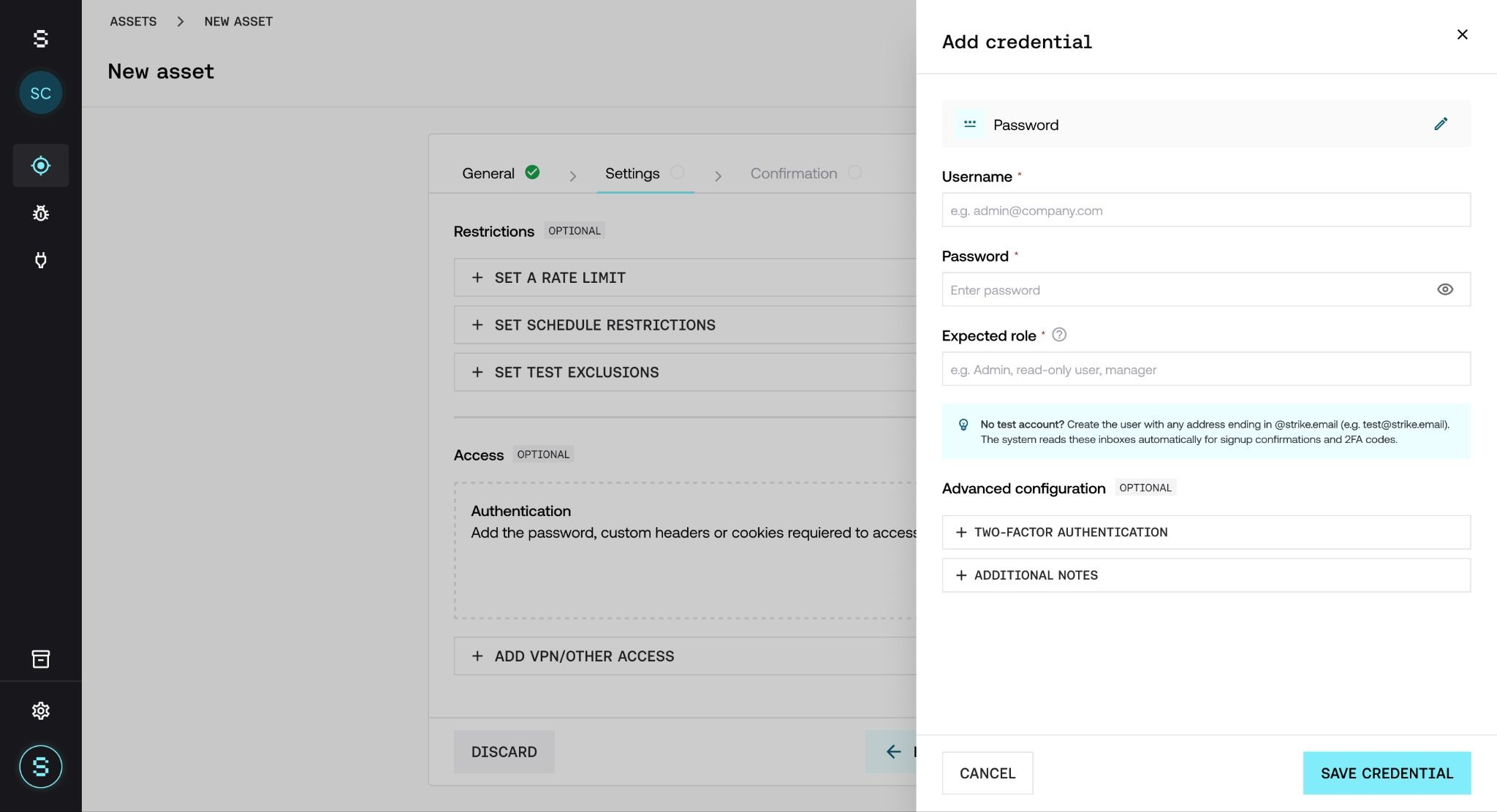
Open the asset and click Add credential.
Select User & Password as the credential type.
Fill in the username, the password, and the expected role.
In Advanced configuration, click Two-factor authentication.
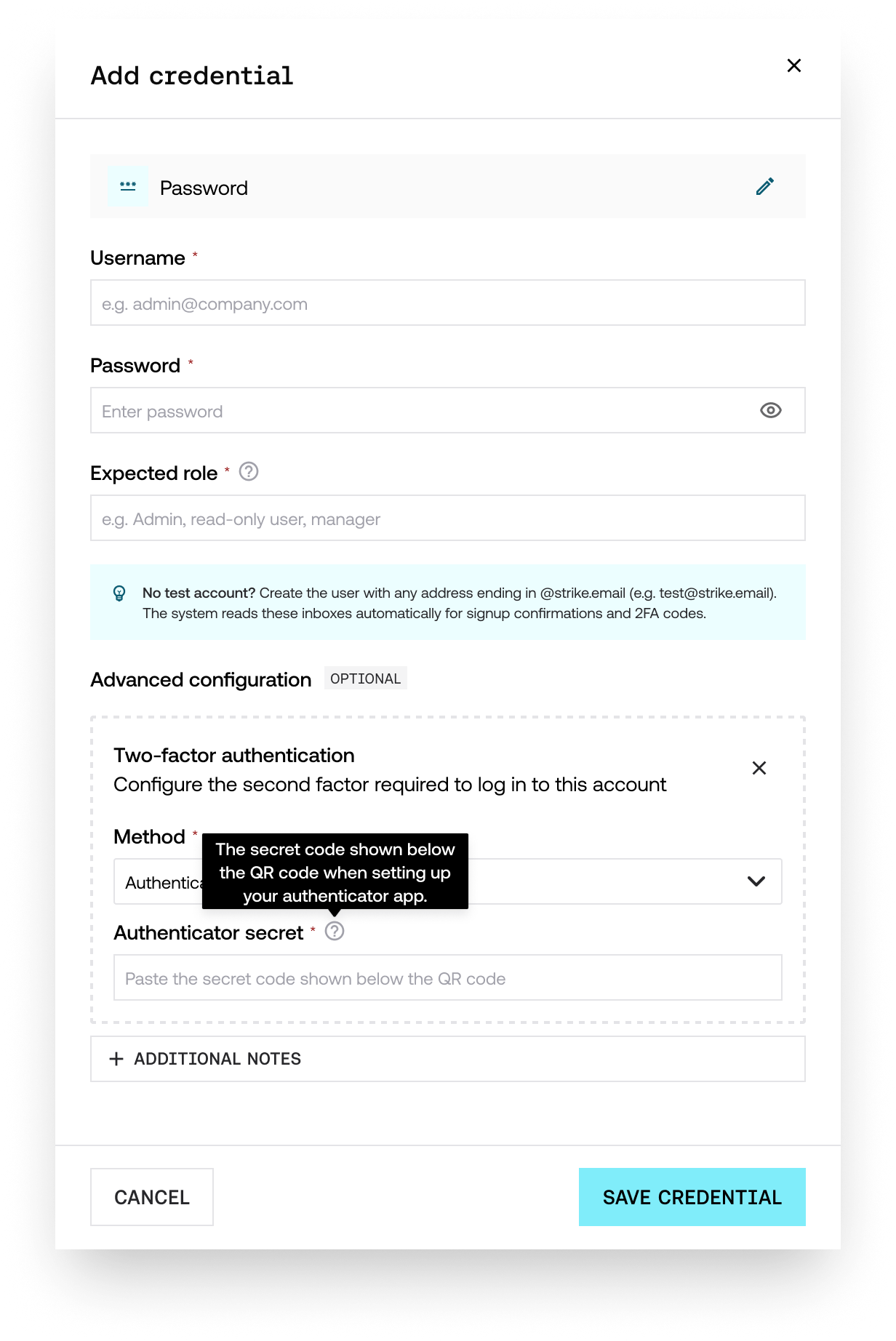
Select the Method used by the target app and complete the field specific to that method.
Click Save credential.
You can edit the 2FA configuration later by clicking the credential's row to reopen it. You can also configure an asset's credentials from a Threat Emulation, with Set up in the Scoping step. To see how credentials are shared between the asset and the Threat Emulation, see How configuration is inherited between an asset and a Threat Emulation.
Method 1: authenticator app (TOTP)
Use this method when the target app uses Google Authenticator, Authy, 1Password, Microsoft Authenticator, or any other TOTP-compatible app.
What you need: the TOTP secret from the target app's authenticator setup screen. It's the alphanumeric string usually shown next to the QR code (for example, JBSWY3DPEHPK3PXP). If only the QR code is shown, most authenticator apps let you view the underlying secret after scanning it.
Where to paste it: in the Authenticator secret field that appears when you select this method.
That's it. Strike generates valid 6-digit codes throughout the entire run.
Method 2: email verification code
Use this method when the target app sends a one-time code to the user's email when logging in (for example, "Your login code is 123456").
The requirement: the credential's Username must end in @strike.email. Strike only receives codes sent to mailboxes it manages, and @strike.email is the domain it manages for this purpose.
If you already have a test account in the target app: make sure its email address ends in @strike.email (for example, [email protected]). If it doesn't, update the account's email or create a new test user.
If you don't have a test account yet: sign up in the target app using any @strike.email address (for example, [email protected]). The sign-up confirmation email arrives in the mailbox managed by Strike and is read automatically to complete the registration. Then, save those credentials in Strike using the same @strike.email username.
Any @strike.email address works with no additional configuration. There is no mailbox to provision and no access to share.
Frequently asked questions
Can I use both 2FA methods on the same credential?
No. Choose the one the target app actually uses. Each credential corresponds to a single login flow.
What if I don't have the TOTP secret, only the QR code?
Most authenticator apps (Google Authenticator, Authy, 1Password) let you reveal the secret after scanning the QR code. Another option is to reconfigure 2FA on the test account and copy the secret before scanning the new QR code.
Does Strike support 2FA via SMS?
SMS support is expanding. There is not yet phone number coverage for all countries, and the list of supported regions is updated as new providers are added. If your asset's login depends on SMS codes, contact your Strike representative to check whether your country is covered.
Can anyone outside Strike see the emails sent to @strike.email?
No. Those mailboxes are managed within Strike and are not exposed externally. They exist only to receive verification and sign-up emails for the Threat Emulations you authorize.
Can I create the test user with @strike.email before configuring Strike?
Yes, and it's the recommended flow when a test account doesn't exist yet. Sign up directly in the target app with any @strike.email address; Strike reads the confirmation email. Then add the credential in Strike using that same username.
What if the credential was created by an admin?
Credentials provisioned by the workspace admin are read-only for all other users. You can open the panel to inspect the configuration, but the edit and delete options are disabled. If something needs to change, contact your admin.
Is the credential validated before testing starts?
Yes. At the start of each run, the Pre-flight Check verifies that the configured credentials can authenticate. If the login fails (incorrect password, expired secret, verification code not received), the run doesn't start and you see a notice describing the problem. Fix the credential and click Retry. For more detail, see How the Pre-flight Check works.
Can I add 2FA to an existing credential?
Yes. Open the asset, go to Details, and edit its configuration. From there you can open the credential, expand Two-factor authentication, choose a method, and save.
If the Pre-flight Check fails, are credits consumed?
No. If the Pre-flight Check detects a problem, testing never starts and no credits are consumed. The whole point is to detect and resolve any issue before the run, so that no coverage or resources are lost.