Asset details: Overview, details, and access
Last updated: October 19, 2026
Each asset has a detail view where you can see its status, its configuration and who has access. It is organized into three tabs: Overview, Details and Access.
Next to the asset name you see the Pre-flight Check badge, which shows whether the asset is ready to be tested. For more details, see How the Pre-flight Check works.
Overview
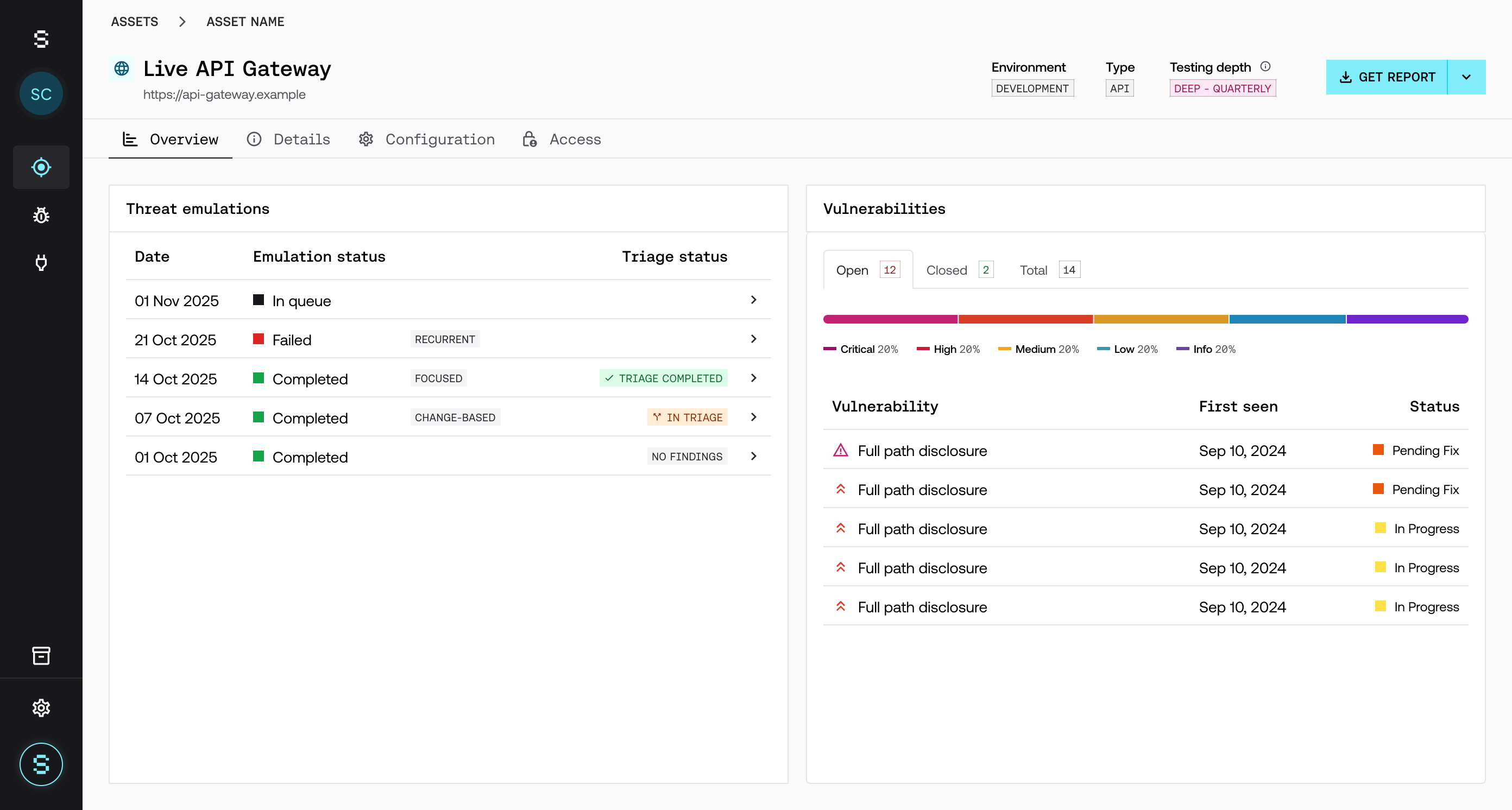
This is the asset's main view. It helps you quickly understand its level of exposure:
Vulnerability status.
Severity.
Recent activity.
Run history of the Threat Emulations it is included in.
From the asset details you can also click Start test to include it in a Threat Emulation. For more details, see How to add a new asset.
Details
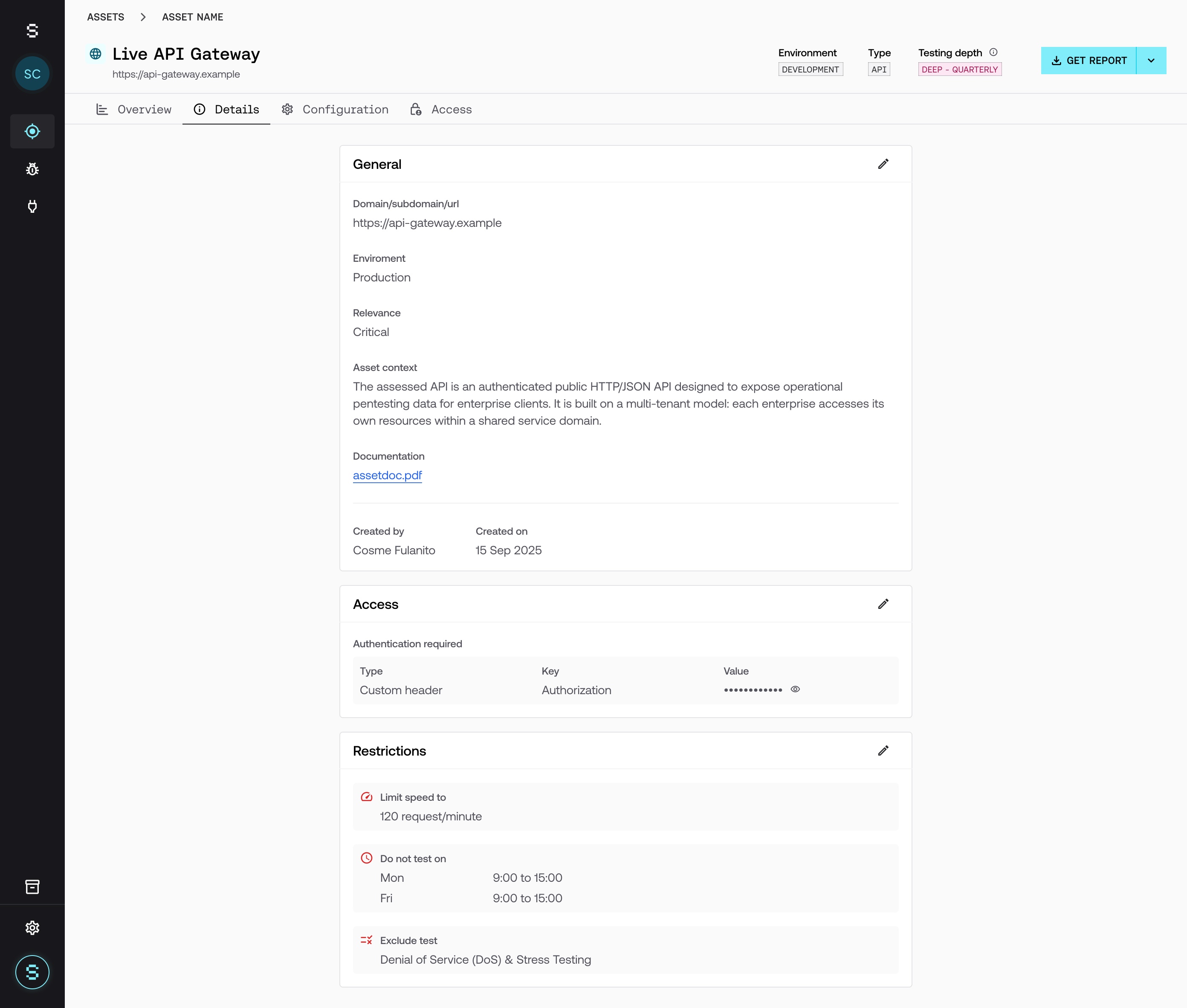
Includes the asset's configuration:
URL and type.
Environment.
Criticality level.
Uploaded context.
Technical documentation.
This information is key to improving the quality of testing. To see which part of this configuration is taken by the Threat Emulations that include the asset, see How configuration is inherited between an asset and a Threat Emulation.
Access
Defines who can interact with the asset. You can assign specific permissions per user, regardless of their global role. This gives you granular control and prevents overexposure of access.
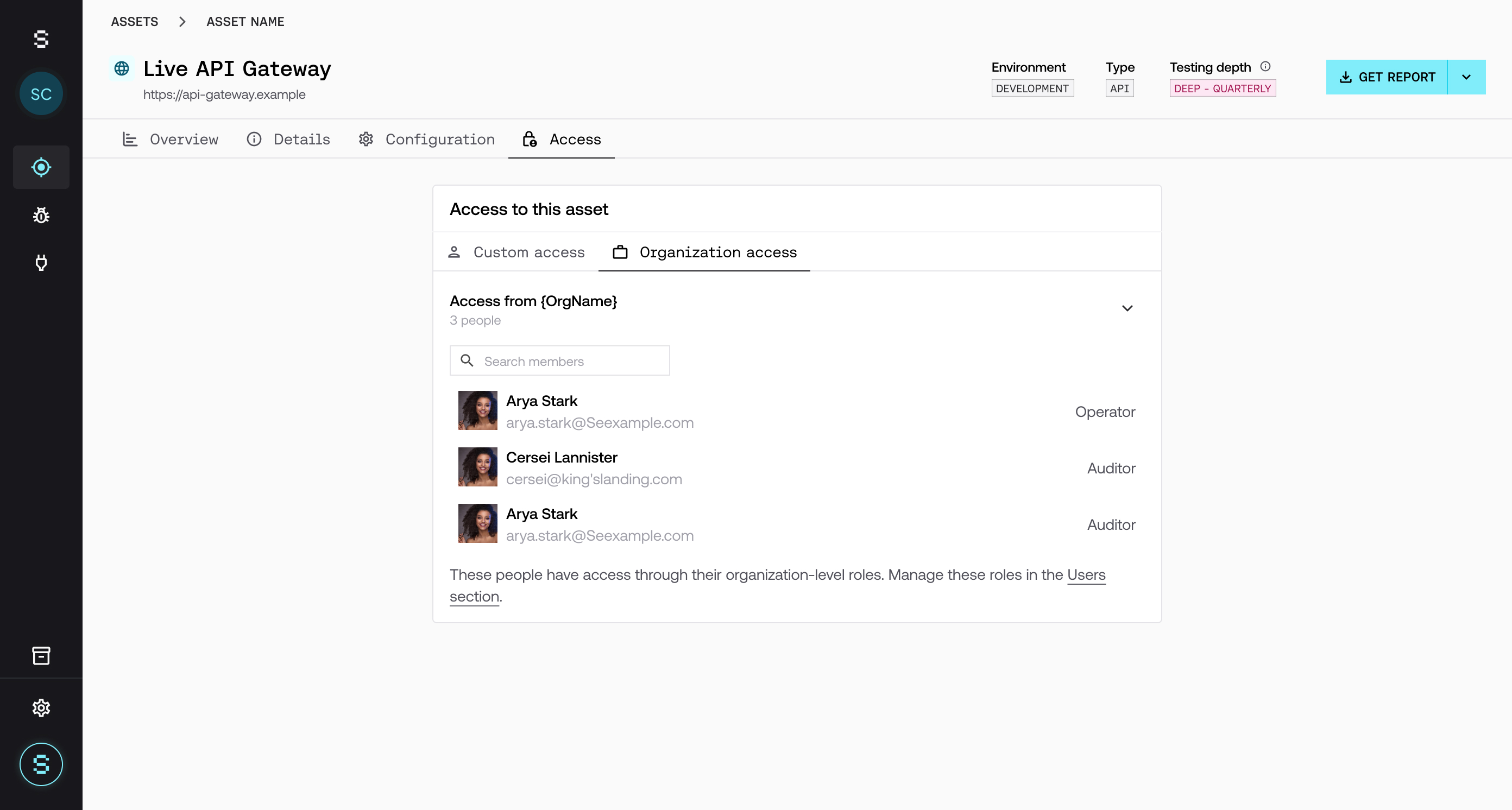
For more details about roles, see Roles and permissions on the platform.